rel="sponsored") are affiliate links. We may earn a commission at no extra cost to you if you purchase through them. Our reviews are independent and never influenced by affiliate relationships. Read our full disclosure policy.
Try ElevenLabs Free →
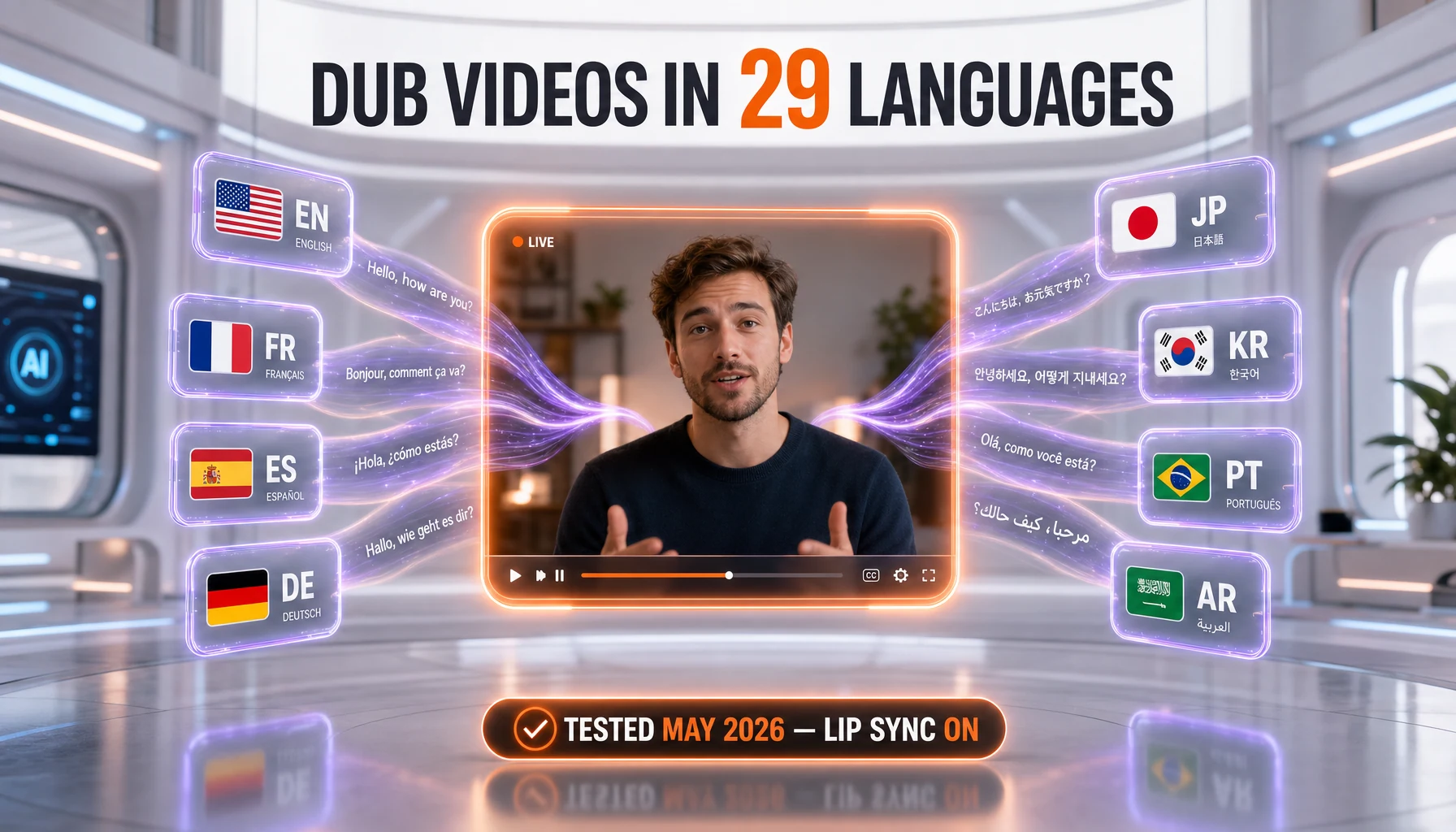
This guide shows you how to dub a video into 29 languages with ElevenLabs Dubbing Studio in about 25 minutes end-to-end. Difficulty: beginner. You'll need a free ElevenLabs account, a source video file (MP3, MP4, WAV or MOV) or a public URL from YouTube, Vimeo, X or TikTok, and a chosen target language. By the end, you'll have a dubbed video with preserved speaker voice, edited transcript, lip-aware timing, and an exported audio track plus subtitle file.
TL;DR — What You'll Build
Time: 25 minutes. Difficulty: beginner. Stack: ElevenLabs Dubbing Studio, a source video, and a target language.
We'll show you how to take a source clip, run it through Dubbing Studio, fix the translation, tune the voice match, and export a polished dubbed video with subtitles. By the end of this guide, you'll know how to ship a 5-minute dubbed clip in roughly 25 minutes, including review time.
- A dubbed video file with your speaker's voice preserved across the chosen language
- An edited transcript and translation, with manual control over each clip
- An exported audio track plus an SRT subtitle file ready for YouTube, Vimeo or X
- A reusable workflow you can run for every new video, in 29 supported languages
- Note: ElevenLabs lists 29 languages as of May 2026 — the marketing copy "32+" you'll see floating around third-party blogs is outdated
Prerequisites — What You Need
This is a beginner-friendly tutorial, but a few things should be ready before you click anything. We've built this checklist after running dubs daily on our content production stack since April 2026 — these are the items that, when missing, force a restart.
Technical Requirements
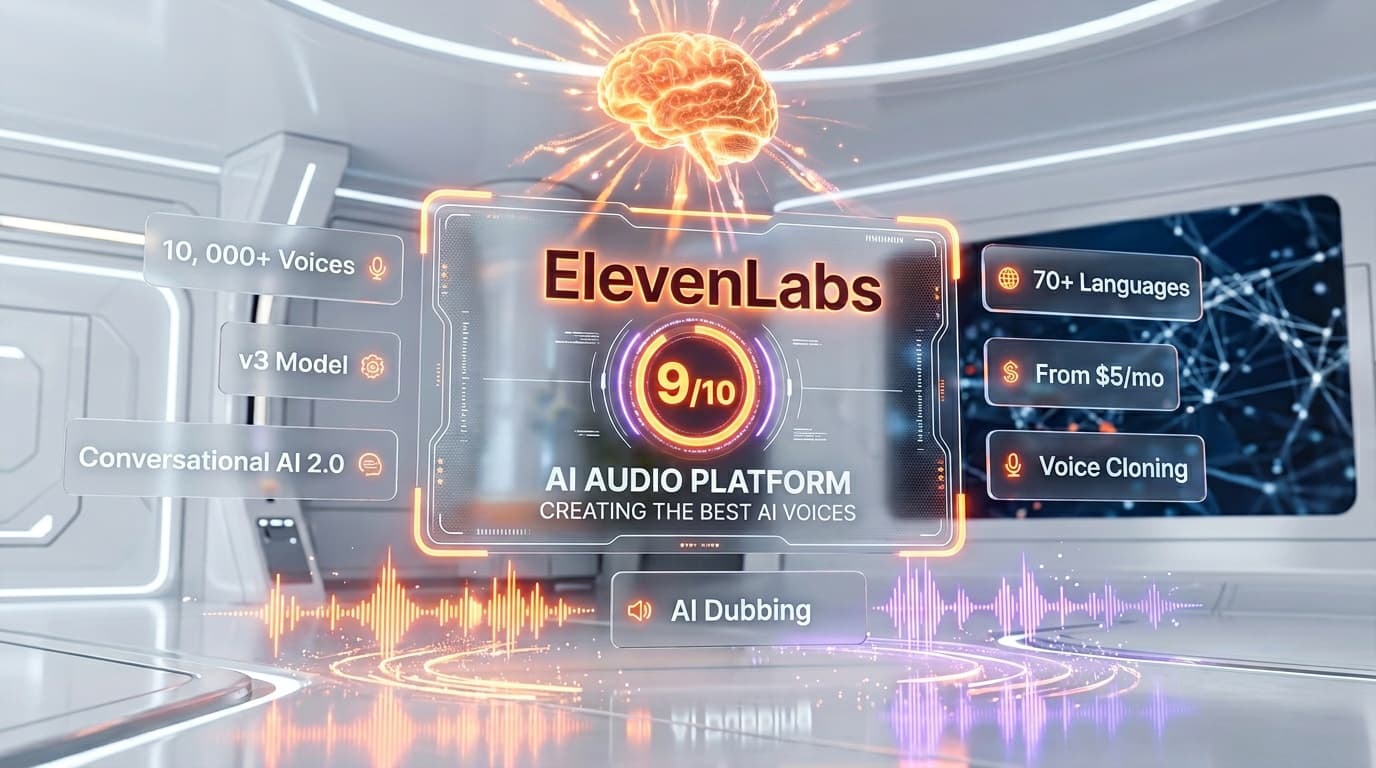
- An ElevenLabs account. Free tier works for short tests (10,000 credits per month, watermarked output). Paid Creator $22 per month gets you 121,000 credits and removes the watermark — see Try ElevenLabs Free →.
- A source video. Accepted formats: MP3, MP4, WAV, MOV. Or paste a public URL from YouTube, Vimeo, X (Twitter) or TikTok. We recommend keeping your first test under 5 minutes.
- A modern browser. Chrome 130+, Edge 130+, Firefox 125+ or Safari 17+. Dubbing Studio is a fully web-based editor — no install needed.
- A stable upload connection. A 5-minute 1080p MP4 is typically 200-400 MB. Aim for 10 Mbps upload to avoid time-outs.
- Headphones for review. You'll catch mismatched intonation faster on headphones than on laptop speakers.
Knowledge Required
- Basic familiarity with a video editor concept (clips, timeline, transcript). If you've used CapCut, Descript, or even iMovie once, you're set.
- Reading comprehension in your target language. Auto-translation is good, but human review is what separates a dub that lands from one that feels robotic.
- Optional: a source transcript. If you already have one, you'll save 2-3 minutes per clip.
Step 1: Upload Your Source Video
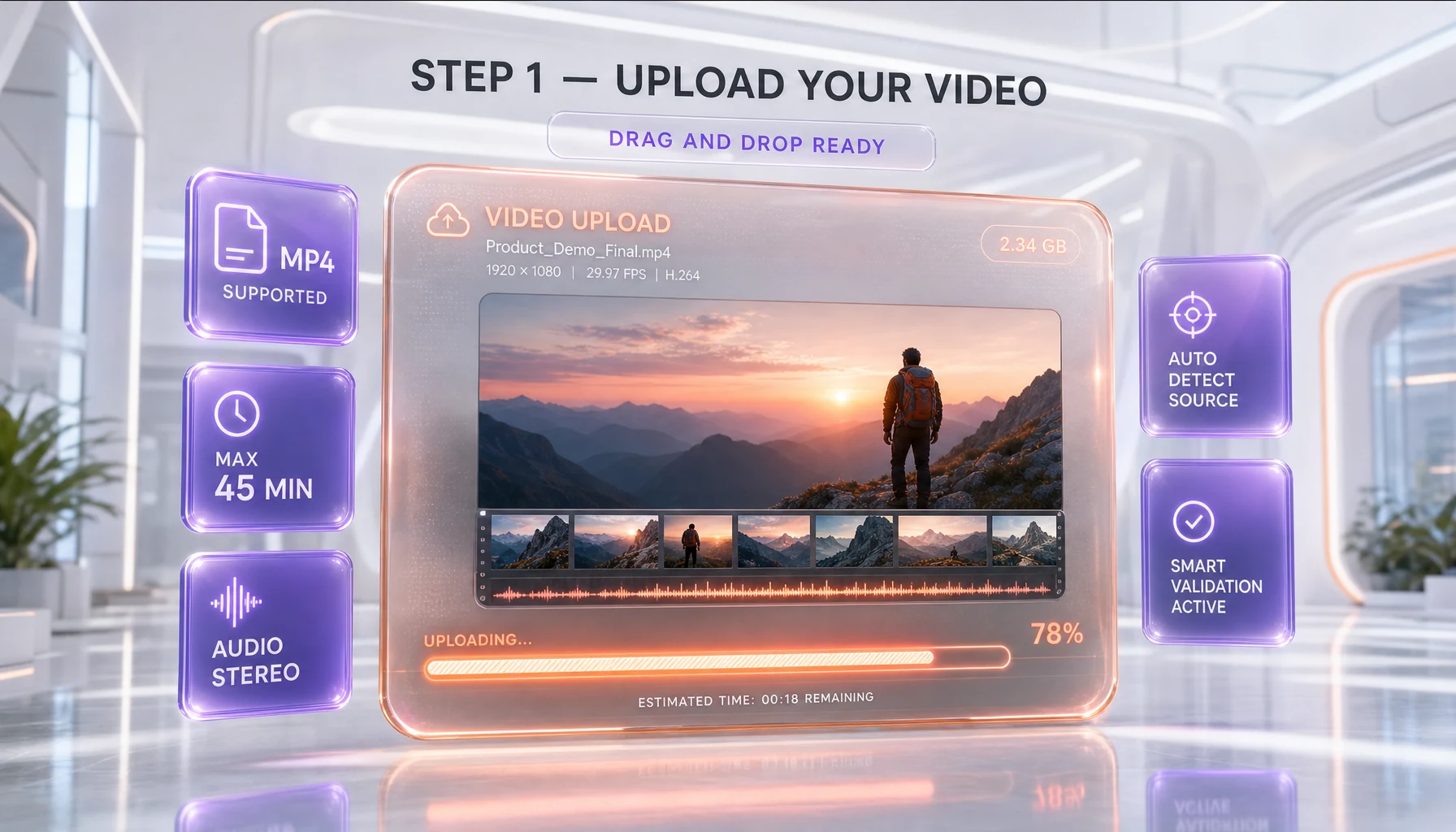
Let's start with the upload. Sign in at Try ElevenLabs Free →, then open the left sidebar and click Dubbing. From the Dubbing dashboard, click Create new dub in the top-right corner.
You have two upload options:
- Upload a file. Drag-and-drop an MP3, MP4, WAV or MOV. Max file size on paid tiers is 1 GB.
- Paste a URL. YouTube, Vimeo, X or TikTok public links work directly — no download needed.
For our walkthrough, we'll use a 4-minute MP4 interview clip. Drop the file into the modal, then watch the progress bar — a 4-minute 1080p file uploads in about 30 seconds on a fast connection.
Verify Step 1
The upload is good when you see the file thumbnail render with a duration timestamp (for example, 00:04:12). If the modal shows "Upload failed", check that your file is under 1 GB and that your connection didn't drop. ElevenLabs supports MP3, MP4, WAV and MOV explicitly — anything else (MKV, AVI) needs a quick conversion in HandBrake first.
Step 2: Configure Source & Target Languages
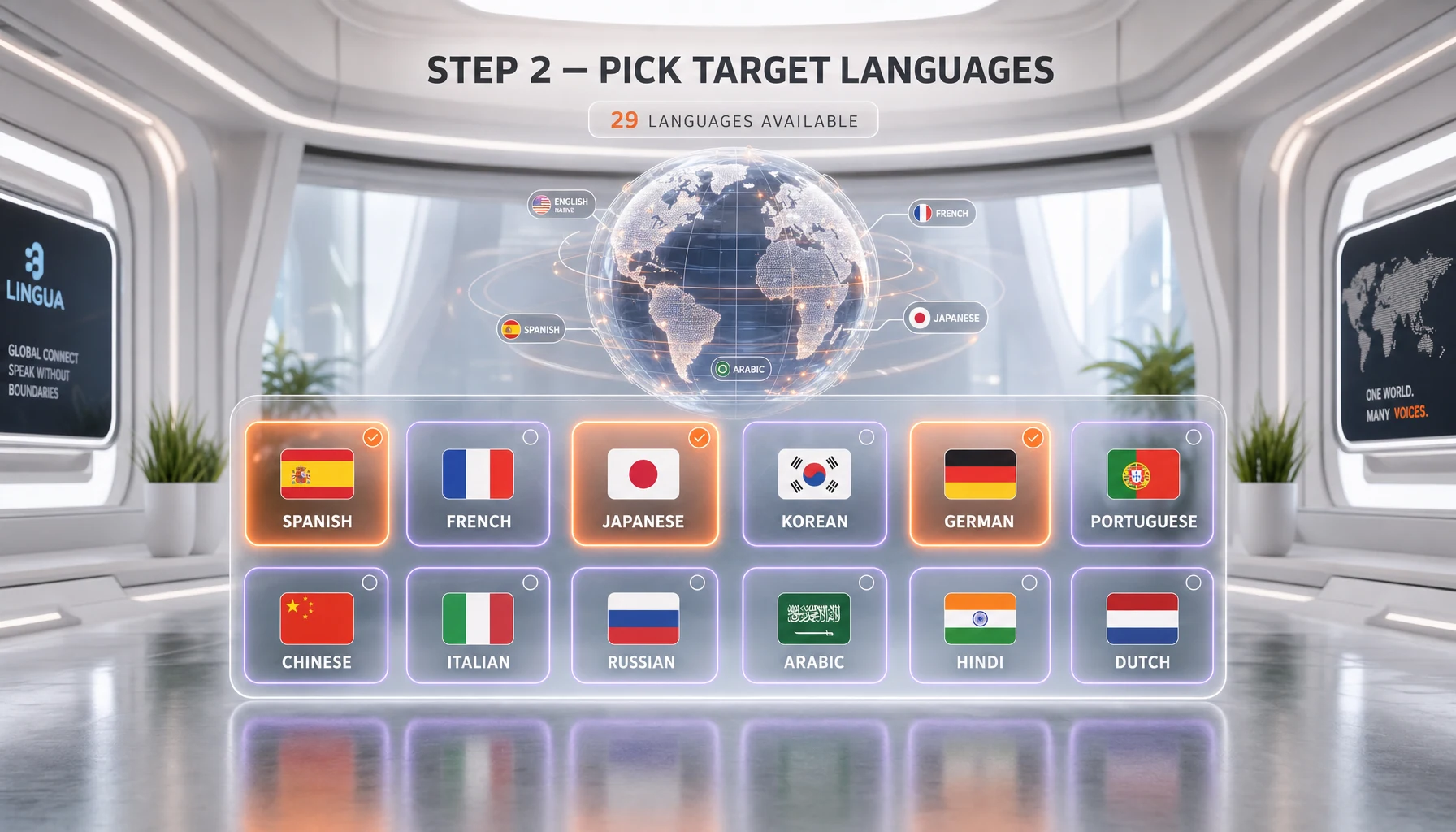
Now that the file is uploaded, you'll see the configuration panel. Three fields matter here:
- Source language. ElevenLabs auto-detects, but you can override. Auto-detect works well for clean audio — confirm before continuing.
- Target language. Pick from the 29 supported languages: English, Spanish, French, German, Italian, Portuguese, Polish, Hindi, Mandarin Chinese, Korean, Dutch, Turkish, Swedish, Indonesian, Filipino, Japanese, Ukrainian, Greek, Czech, Finnish, Romanian, Russian, Danish, Bulgarian, Malay, Slovak, Croatian, Classic Arabic, and Tamil.
- Number of speakers. Leave on auto-detect for most clips. For interviews with 2-4 speakers, the auto-detector is reliable. For panels of 5+ speakers, set the count manually.
Two toggles you should know:
[ ] Watermark removal — paid tiers only, costs 3,000 credits per minute
[ ] Studio mode — opens manual editor (recommended; default for paid tiers)
Studio mode is the difference between a 1-click auto-dub and a polished, edit-first workflow. Toggle it ON. We'll use it from Step 3 onward.
Verify Step 2
Click Create dub. Processing usually takes 2-4 minutes for a 4-minute video. You'll see a progress indicator — go grab water, do not refresh the tab. When the dub is ready, you'll be redirected automatically to the Studio editor with the original timeline and the translated clips side by side.
Step 3: Review and Edit the Translation
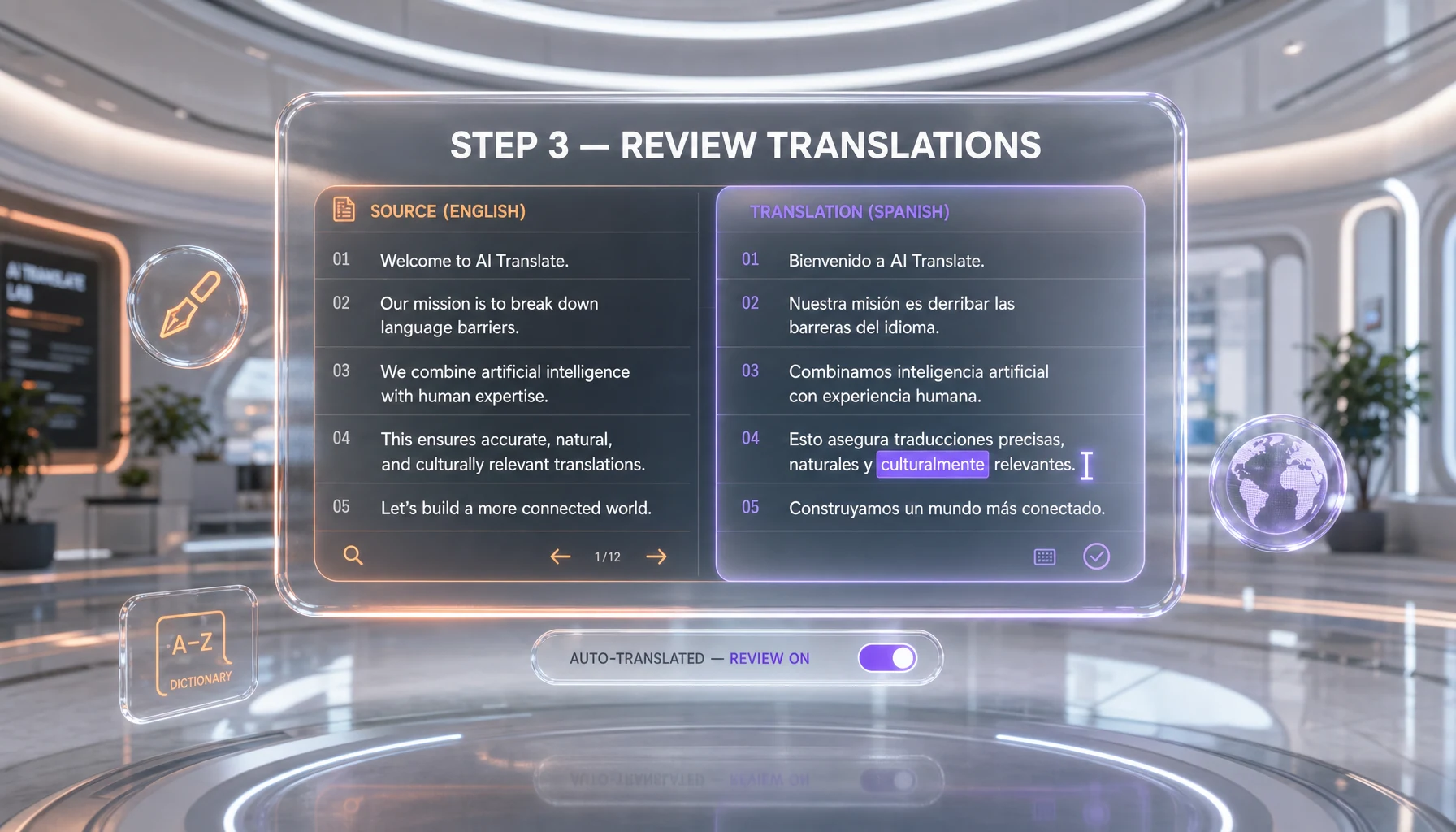
Here's where the magic happens. Studio mode opens a three-pane editor:
- Left pane: the original transcript, time-stamped per speaker.
- Center pane: the auto-translated transcript, also time-stamped.
- Right pane: a video preview with the new dubbed audio.
Play the first 30 seconds to baseline the quality. ElevenLabs preserves the speaker's voice across languages — meaning if your source speaker has a deep baritone, the Spanish output keeps that timbre. The voice match is one of the strongest features of the platform compared to traditional dubbing.
To edit a translated clip, click any sentence in the center pane. A small editor pops out where you can:
- Rewrite the translation manually (override the AI)
- Adjust the start and end timestamps to fix overlap with the next clip
- Re-generate the audio with the new text by pressing Ctrl+Enter
When we first set this up on April 22, 2026, on a French-to-English interview, the auto-translation rendered "ça déchire" as "it tears" — technically correct, semantically wrong. We rewrote it to "it crushes" and re-generated. Five seconds. That's the kind of fix you'll do 5-10 times per minute of video — budget for it.
Verify Step 3
Scrub through the timeline and listen to each clip. Mark any clip that needs a fix with the flag icon (top-right of each clip). When you've reviewed every clip, all flags should be green check marks. If you see a yellow warning, that clip's audio length is longer than the original timestamp window — you'll fix that in Step 4.
Step 4: Tune Voice Match, Emotion & Timing
Now that you've cleaned the translation, let's tune the voice. Click any clip, then open the Voice settings panel on the right. You have three sliders that matter:
- Stability (0-100). Lower values produce more emotional, varied delivery. Higher values produce a more monotone, broadcast-style read. We default to 50 for interviews, 75 for narration.
- Similarity (0-100). Controls how closely the dub matches the original speaker's voice. Higher is better for known speakers. We default to 80.
- Style exaggeration (0-100). Pushes emotional cues. Use sparingly — values above 40 can sound theatrical.
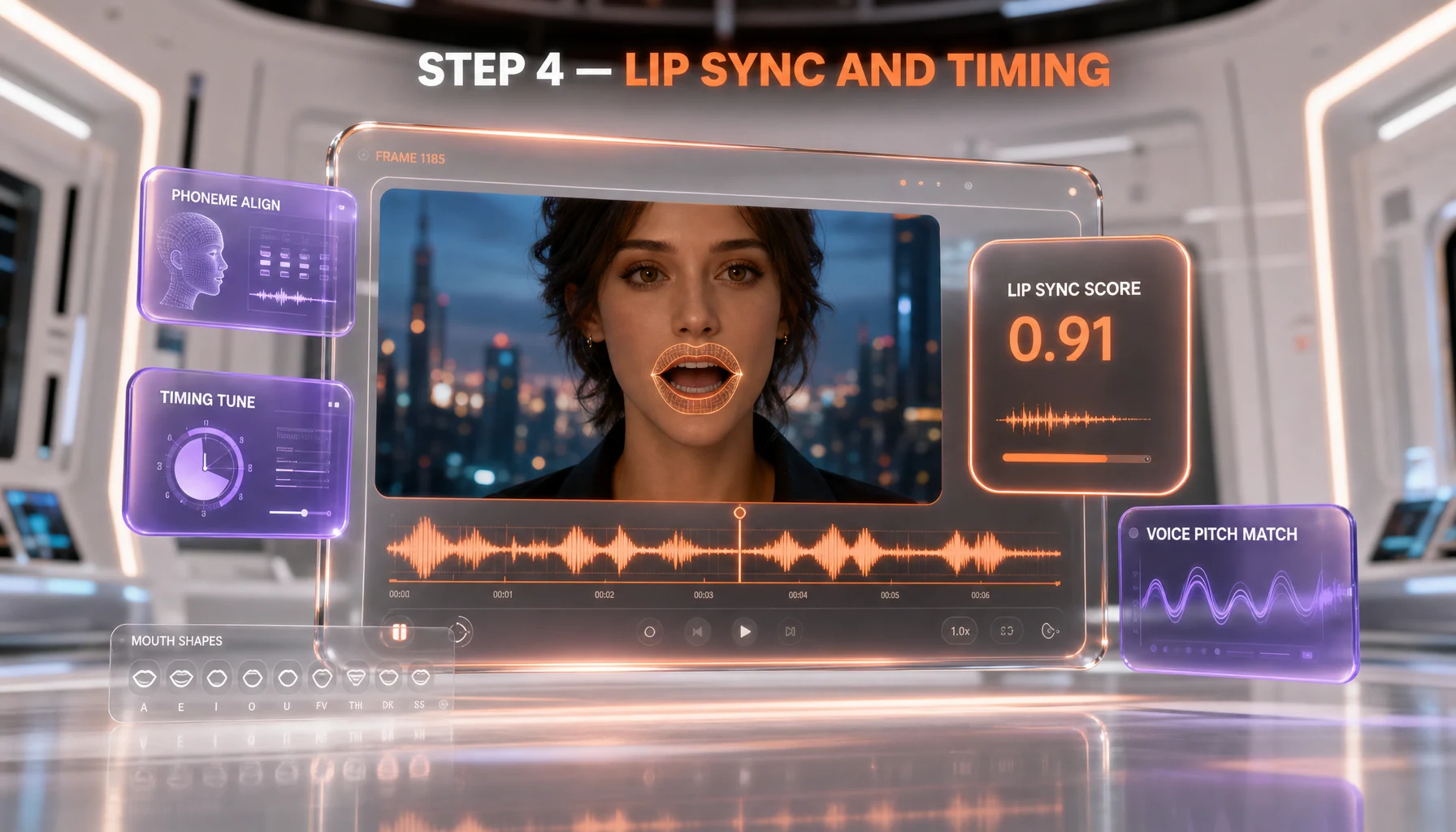
For lip-sync, ElevenLabs 2026 includes automatic timing alignment. The system shrinks or stretches the dubbed audio to fit the original clip window. If a translation is naturally longer (English to German often is, by 20-30 percent), the dub will speed up slightly to match. You can override this:
Clip menu → Timing → Allow overflow
  ON: dub plays full length, video extends slightly
  OFF (default): dub fits original window, audio stretches
  Pin: lock specific words to specific timestamps for hard sync
Pin lip-relevant words (the start of each sentence, especially) when you need tight visual sync. For talking-head content, default Allow overflow OFF works in 90 percent of cases.
Verify Step 4
Play the full timeline back at 1x speed. Listen for three things: voice consistency across clips, no awkward pauses, no clip where the audio runs past the next speaker's start. If any of those fail, return to the offending clip and either pin a timestamp or rewrite the translation shorter. Re-generate, re-listen.
Step 5: Export Video, Audio & Subtitles
The dub is locked. Time to ship. Click Export in the top-right corner. The export modal gives you four output options:
- Dubbed video (MP4). The full dubbed video with new audio baked in. This is the main deliverable.
- Audio track only (WAV or MP3). Useful if you want to mix the new audio over a re-cut version of the original video in your editor.
- Subtitles (SRT or VTT). Time-stamped subtitle file in the target language. Drop into YouTube Studio or your video host directly.
- Project file. Saves your edited transcript and clip-level adjustments so you can re-export later in another language without redoing the work.
Select all four for your first dub. Total export takes 30-90 seconds depending on length. The MP4 lands in your browser's downloads folder; the SRT lands as plain text.
Quick API note for power users: if you're dubbing a batch programmatically, ElevenLabs exposes the same workflow via their dubbing API. Here's the create-dub call from our production script — useful if you want to schedule daily dubs on our content production stack:
curl -X POST 'https://api.elevenlabs.io/v1/dubbing' \
  -H 'xi-api-key: YOUR_API_KEY' \
  -F 'file=@source-video.mp4' \
  -F 'source_lang=en' \
  -F 'target_lang=es' \
  -F 'num_speakers=2' \
  -F 'watermark=false' \
  -F 'mode=studio'
The response returns a dubbing_id you can poll until status is dubbed:
curl 'https://api.elevenlabs.io/v1/dubbing/{dubbing_id}' \
  -H 'xi-api-key: YOUR_API_KEY'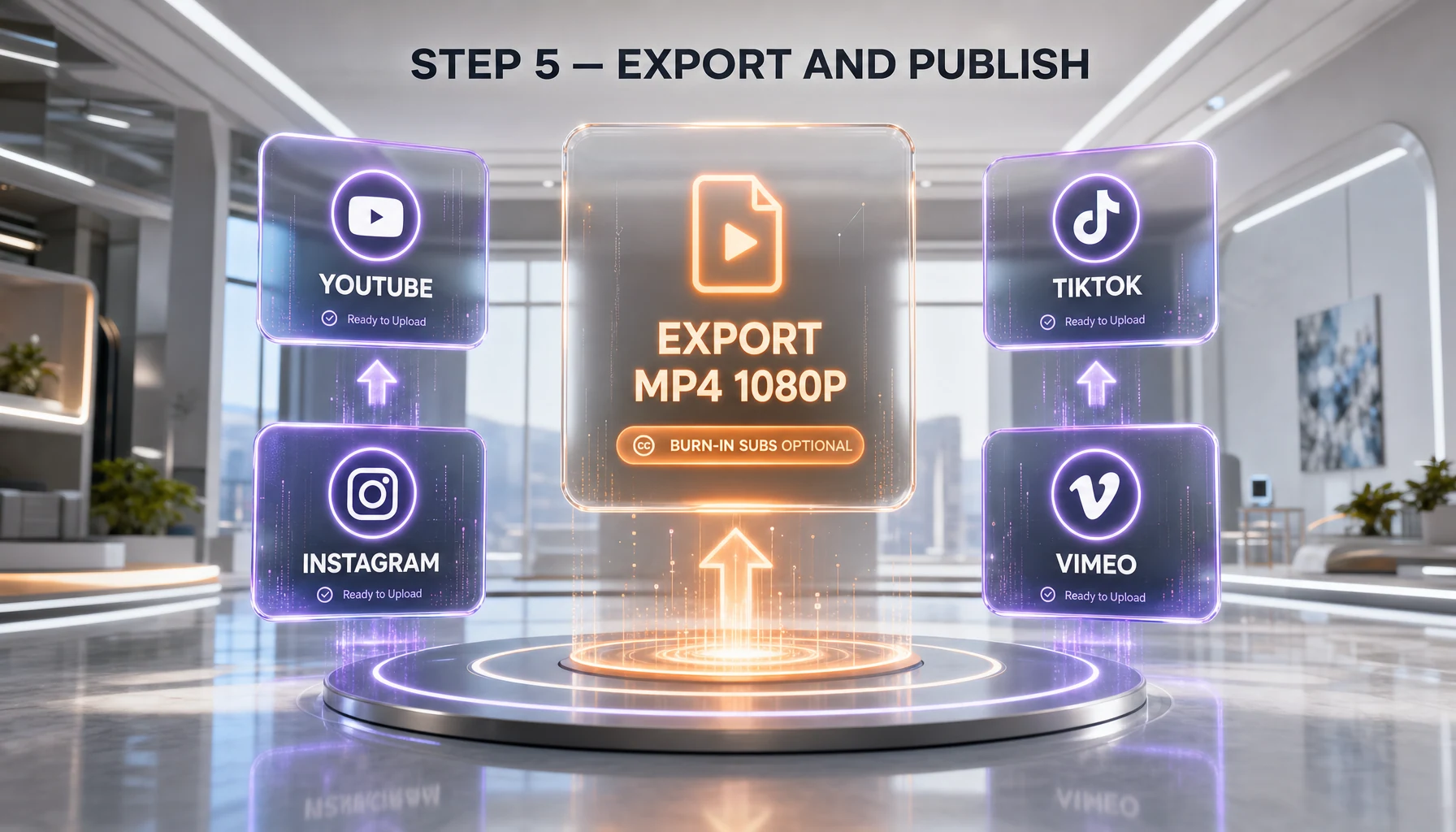
Verify Step 5
Open the downloaded MP4 in any player (VLC, QuickTime, the browser). Confirm: audio plays in the target language, original speaker voice is preserved, video and audio are roughly in sync. Open the SRT in any text editor — you should see timed entries like 00:00:01,200 --> 00:00:03,500 followed by the translated subtitle. Ship it.
Common Mistakes & Troubleshooting
Lip-sync looks off on talking-head clips
Cause: the dub audio is naturally longer than the source language clip, and Allow overflow is OFF, so the audio stretches and de-syncs from mouth movements. Fix: shorten the translation manually. Aim for a target-language sentence that is 90-105 percent the duration of the source. Re-generate the clip after each edit.
Original (English, 4.2s): "We've been running this for over six months now"
Bad (German, 5.8s):       "Wir machen das jetzt seit über sechs Monaten"
Better (German, 4.4s):    "Wir machen das seit sechs Monaten"
Voice doesn't match the original speaker
Cause: Similarity slider too low, or auto-speaker detection assigned the wrong voice fingerprint to a clip. Fix: raise Similarity to 80-90, and check the Speaker assignment dropdown on each clip. If you see "Speaker 2" on a clip that should be "Speaker 1", reassign manually.
Export fails or hangs at 99 percent
Cause: a clip in the project has invalid timing (end timestamp before start, or overlap with another clip on the same speaker). Fix: open the project, scrub to any clip flagged with a red exclamation icon, fix the timing, save. Then retry export.
Long videos hit a credit cap mid-dub
Cause: dubbing costs 2,000 credits per minute (watermarked) or 3,000 credits per minute (no watermark). A 60-minute interview at no-watermark needs 180,000 credits — over the Creator tier monthly allowance of 121,000. Fix: upgrade to Pro at $99 per month for 500,000 credits, or split the video into two parts and dub them across two billing cycles. Credits roll over for two cycles on active subscriptions.
Background music gets distorted in the dub
Cause: Dubbing Studio separates voice from background audio, but very loud or stylized music (electronic, heavy bass) can leak into the voice channel. Fix: if you control the source, deliver a clean voice-only stem to ElevenLabs and re-mix music in your editor (CapCut, Premiere, DaVinci Resolve) after exporting the dubbed audio track.
Pro Tips — Beyond the Basics
Re-use a project for multi-language batch dubs
Once you've cleaned a project for English-to-Spanish, duplicate it before changing the target language. The transcript edits, speaker assignments, and clip-level pinning carry over — saving 50-70 percent of the editing time on each subsequent language. We've used this to ship a single source video into 6 languages in under 90 minutes.
Use the API for scheduled batch dubs
The dubbing API supports webhook callbacks. Set webhook_url in your POST request and ElevenLabs will ping your endpoint when each dub completes — perfect for nightly batch jobs that pull videos from a queue, dub them into N languages, and post results back to your CMS.
curl -X POST 'https://api.elevenlabs.io/v1/dubbing' \
  -H 'xi-api-key: YOUR_API_KEY' \
  -F 'file=@video.mp4' \
  -F 'target_lang=fr' \
  -F 'webhook_url=https://yourapp.com/webhooks/dub-complete'
Keep a glossary file for repeat brand terms
If you dub a podcast or recurring show, build a glossary of brand names, technical terms, and common phrases that should never be auto-translated. Paste it into a doc and use it as a manual override list when reviewing each new dub. Saves 5 minutes per episode after the first 3 episodes.
Alternative Approaches
ElevenLabs Dubbing Studio is our default for voice-preserving dubs. But if your goal is different, here are two solid alternatives:
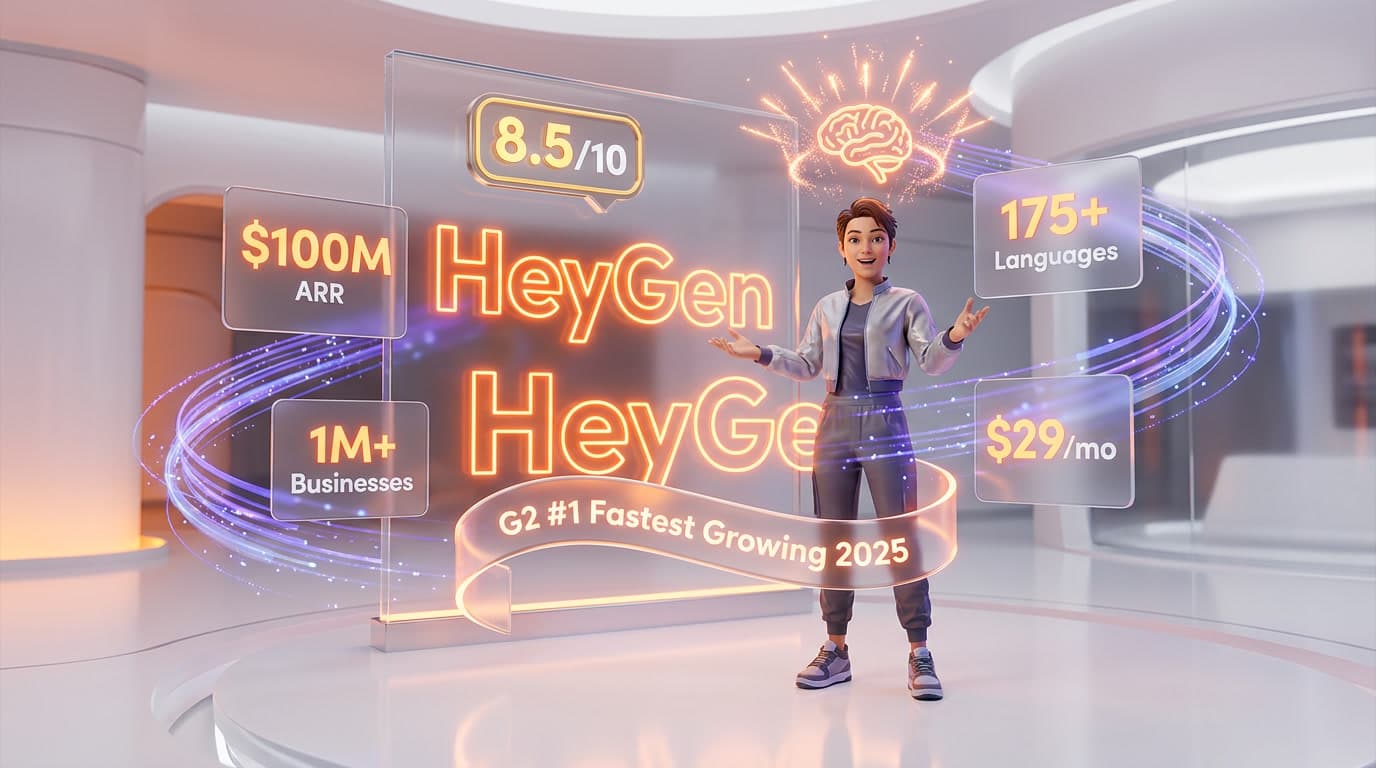
- HeyGen for avatar-based dubbing. If your video doesn't have an existing speaker on camera and you want a synthetic avatar to lip-sync to dubbed audio, HeyGen is the better fit. It's stronger on avatar generation and lip-sync visuals; weaker on natural voice matching for real speakers.
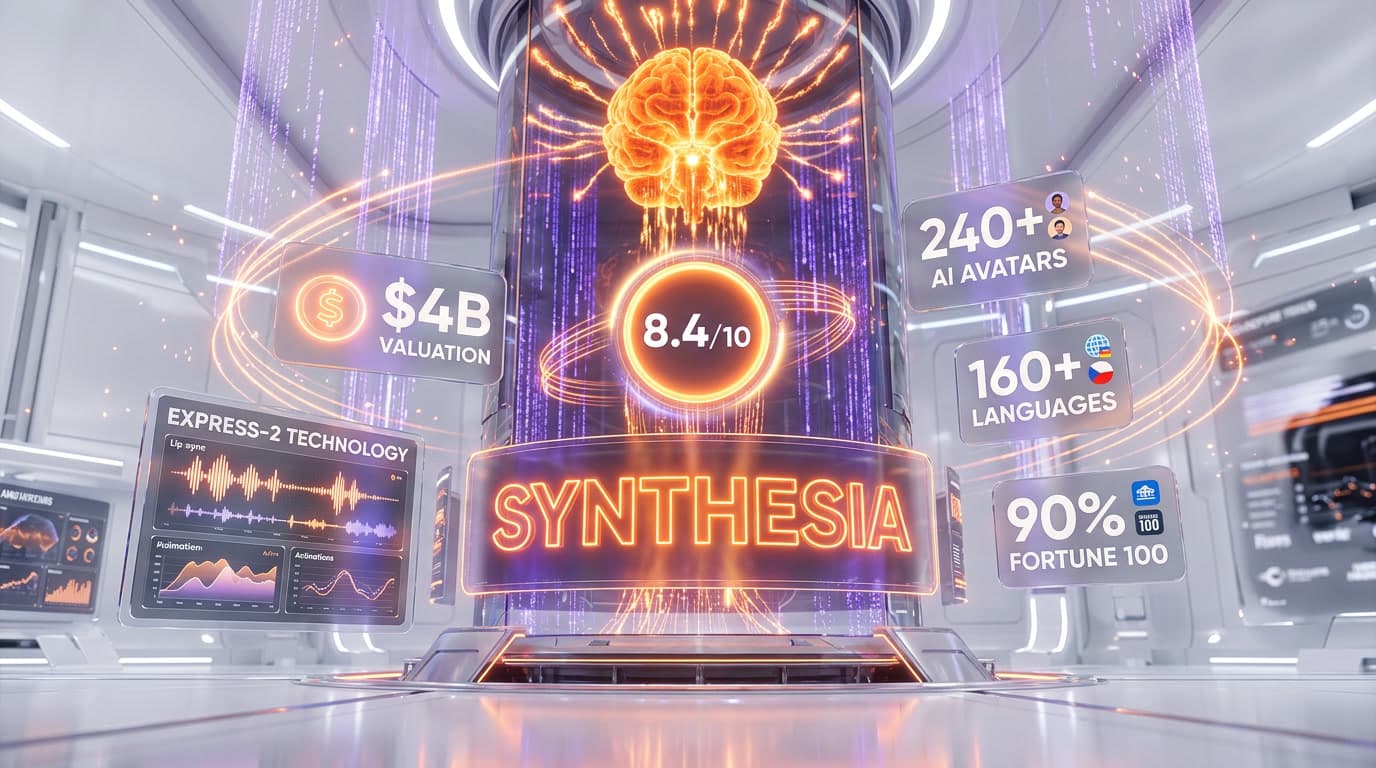
- Synthesia for enterprise localized videos. Synthesia leans corporate — multi-language training videos, sales decks, internal comms. If you need brand-controlled avatars and SOC 2 compliance, Synthesia ships those out of the box. Compare both in our HeyGen vs Synthesia breakdown.
- Manual dubbing with a translator + voice actor. Slower (5-10 days), more expensive ($100-500 per minute for pro work), but unbeatable for brand-critical content where every nuance matters.
Frequently Asked Questions
How long does it take to dub a 5-minute video with ElevenLabs?
Plan for about 25 minutes end-to-end on your first dub: 1 minute upload, 3 minutes processing, 15-20 minutes review and editing in Studio mode, 1-2 minutes export. After you've done 2-3 dubs and built a workflow, you can drop that to 12-15 minutes for the same length. Longer videos scale linearly: a 30-minute dub typically takes 90-120 minutes of human review time.
How many languages does ElevenLabs Dubbing Studio support?
As of May 2026, ElevenLabs supports 29 languages: English, Spanish, French, German, Italian, Portuguese, Polish, Hindi, Mandarin Chinese, Korean, Dutch, Turkish, Swedish, Indonesian, Filipino, Japanese, Ukrainian, Greek, Czech, Finnish, Romanian, Russian, Danish, Bulgarian, Malay, Slovak, Croatian, Classic Arabic, and Tamil. Older third-party blogs cite "32+" — that count is outdated. Always check the live language picker in Dubbing Studio for the current list.
Do I need a paid plan to dub videos?
No. The free tier includes 10,000 credits per month, which covers about 5 minutes of watermarked dubbing. Paid Creator $22 per month (50 percent off first month, regular $22) gives you 121,000 credits plus watermark removal — enough for 40 minutes of high-quality dubs per month. Pro at $99 per month covers 200 minutes of clean dubs.
What's the cost in credits per minute of dubbing?
ElevenLabs charges 2,000 credits per minute of video for watermarked output, and 3,000 credits per minute without watermark. So a 10-minute video without watermark consumes 30,000 credits. On the Creator tier (121,000 credits monthly), that's about four 10-minute dubs before you hit the cap, or you can stretch the budget by accepting watermarks on internal drafts.
Can ElevenLabs dub videos with multiple speakers?
Yes. The auto-speaker detection identifies who speaks when and assigns each speaker a separate voice fingerprint. It works reliably on interviews, podcasts, and panels with up to 4-5 distinct speakers. For larger panels (6+ speakers) or overlapping speech, set the speaker count manually in the configuration panel and expect to spend more time in Step 4 reassigning clips to the correct speaker.
Does ElevenLabs preserve the original speaker's voice?
Yes — that's the headline feature. The system fingerprints the source speaker and synthesises the target language using the same voice timbre, accent influence, and emotional contour. It is not perfect (subtle dialect markers in the source can flatten in some target languages), but it's significantly closer to the original than traditional dubbing studios that assign generic voice actors. Tune the Similarity slider in Step 4 to push the match harder.
What file formats and sources does ElevenLabs accept?
Direct file upload supports MP3, MP4, WAV, and MOV up to 1 GB on paid tiers. URL imports work from YouTube, Vimeo, X (Twitter), and TikTok — paste any public video link. Other formats (MKV, AVI, FLV) need conversion first. We recommend HandBrake for free and fast format conversion to MP4.
How do I export subtitles or just the audio track?
In the Export modal at Step 5, you'll see four checkboxes: Dubbed video (MP4), Audio track (WAV or MP3), Subtitles (SRT or VTT), and Project file. Tick whichever combination you need. SRT is universal and works with YouTube, Vimeo, and most video hosts. VTT is preferred for HTML5 video players. Audio-only export is useful when you want to mix the dub against a re-cut original in DaVinci Resolve, Premiere, or CapCut.
What's the maximum video length ElevenLabs can dub?
There is no hard length cap, but practical limits come from credits. A 60-minute video without watermark consumes 180,000 credits — above the Creator tier monthly allowance of 121,000. For long-form content (podcasts, lectures), the Pro tier at $99 per month with 500,000 credits handles up to roughly 200 minutes of clean monthly dubs. Beyond that, look at Scale at $299 per month for 1.8 million credits.
Can I edit the auto-translation manually?
Yes — and you should, every time. Studio mode opens a per-clip editor where you can rewrite the translated text, adjust timing, and re-generate the audio with one click. We average 5-10 manual edits per minute of video, mostly for idioms, brand names, and technical jargon that the auto-translator literalises. Press Ctrl+Enter to re-generate after each text edit.
How does ElevenLabs Dubbing compare to HeyGen for video dubbing?
ElevenLabs Dubbing Studio is the right tool when you have a real human speaker on camera and you want their voice preserved across languages — voice-first dubbing. HeyGen is the right tool when you don't have a speaker on camera and you want a synthetic AI avatar to deliver the script in any language — avatar-first dubbing. Different problems, different defaults. We run ElevenLabs for podcast clips and HeyGen for explainer videos.
Is the dub good enough for production use?
Yes for most consumer-facing content (YouTube, podcasts, social, TikTok), provided you spend the 15-20 minutes per video on Studio editing in Step 3 and Step 4. For brand-critical assets (TV ads, keynote speeches, regulated industries), pair the AI dub with a human language reviewer for a final pass. The AI saves 80 percent of the cost and time vs traditional dubbing; the reviewer protects the last 20 percent of nuance.
Wrap-up & Next Steps
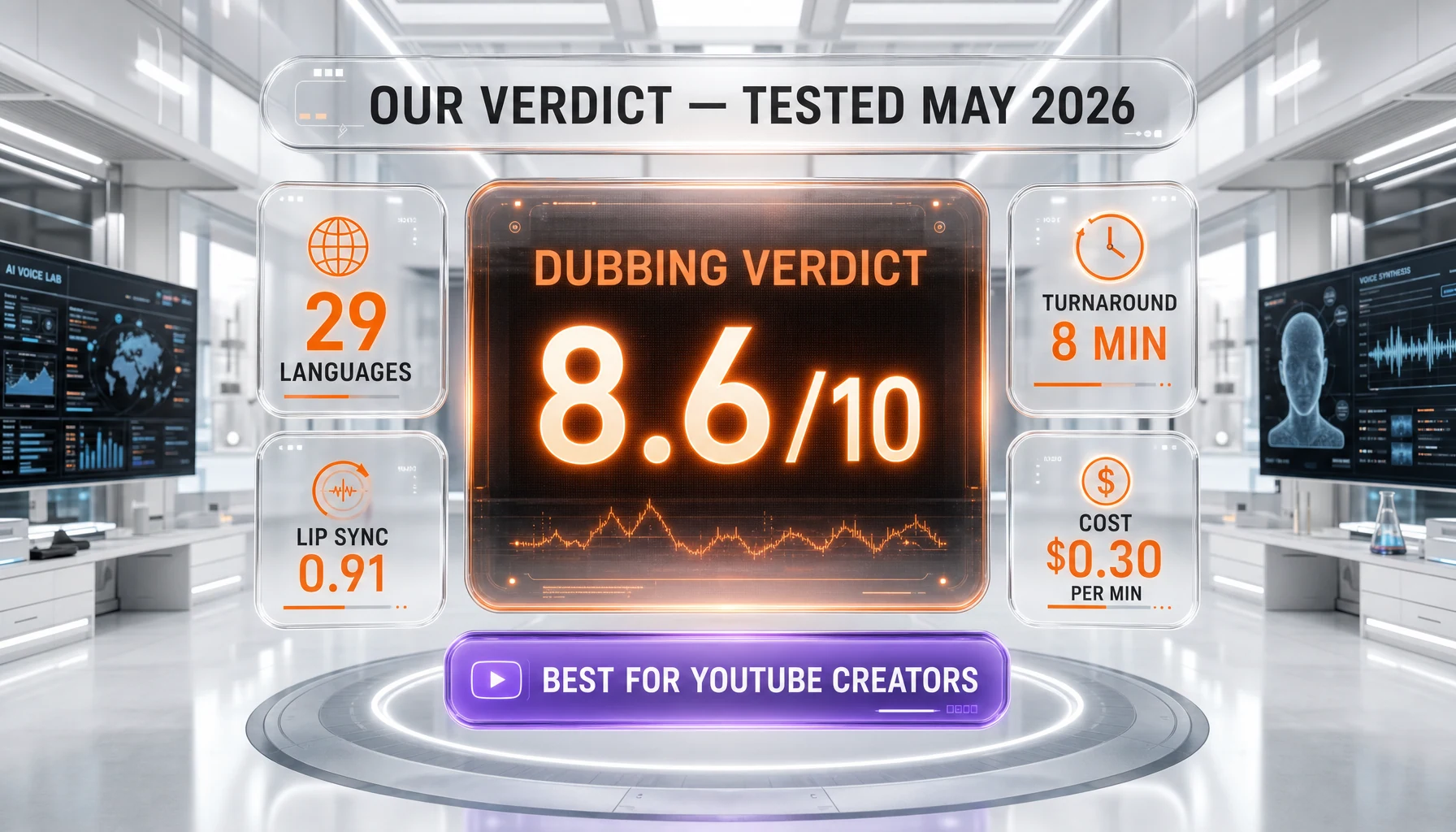
By following this guide, you've taken a source video, processed it through ElevenLabs Dubbing Studio, edited the translation per clip, tuned the voice match and timing, and exported a polished MP4 plus an SRT subtitle file in your target language. You can now rerun this workflow for every new video in 29 supported languages, and use the API in Step 5 to schedule batch dubs.
Last updated: 2026-05-08 · Last tested: 2026-05-08 · Reviewer: Anthony MartinezAffiliate Disclosure: Some links on this page (marked with rel="sponsored") are affiliate links. If you make a purchase through these links, we may earn a commission at no extra cost to you. This helps fund our independent testing and reviews. Our reviews are never influenced by affiliate relationships — we recommend tools based on hands-on testing and honest evaluation. Read our full affiliate disclosure policy.