Self-hosting an open-weight AI model means downloading a model's published weights (from Hugging Face or ModelScope), loading them onto your own GPU with an inference runtime such as vLLM, SGLang, Ollama or llama.cpp, and serving an OpenAI-compatible API that you fully control. In this guide we'll show you how to do it end to end in seven steps: choose a model that fits your hardware, quantize it, pull the weights, pick a runtime, launch the server, send your first request, and harden it for real use.
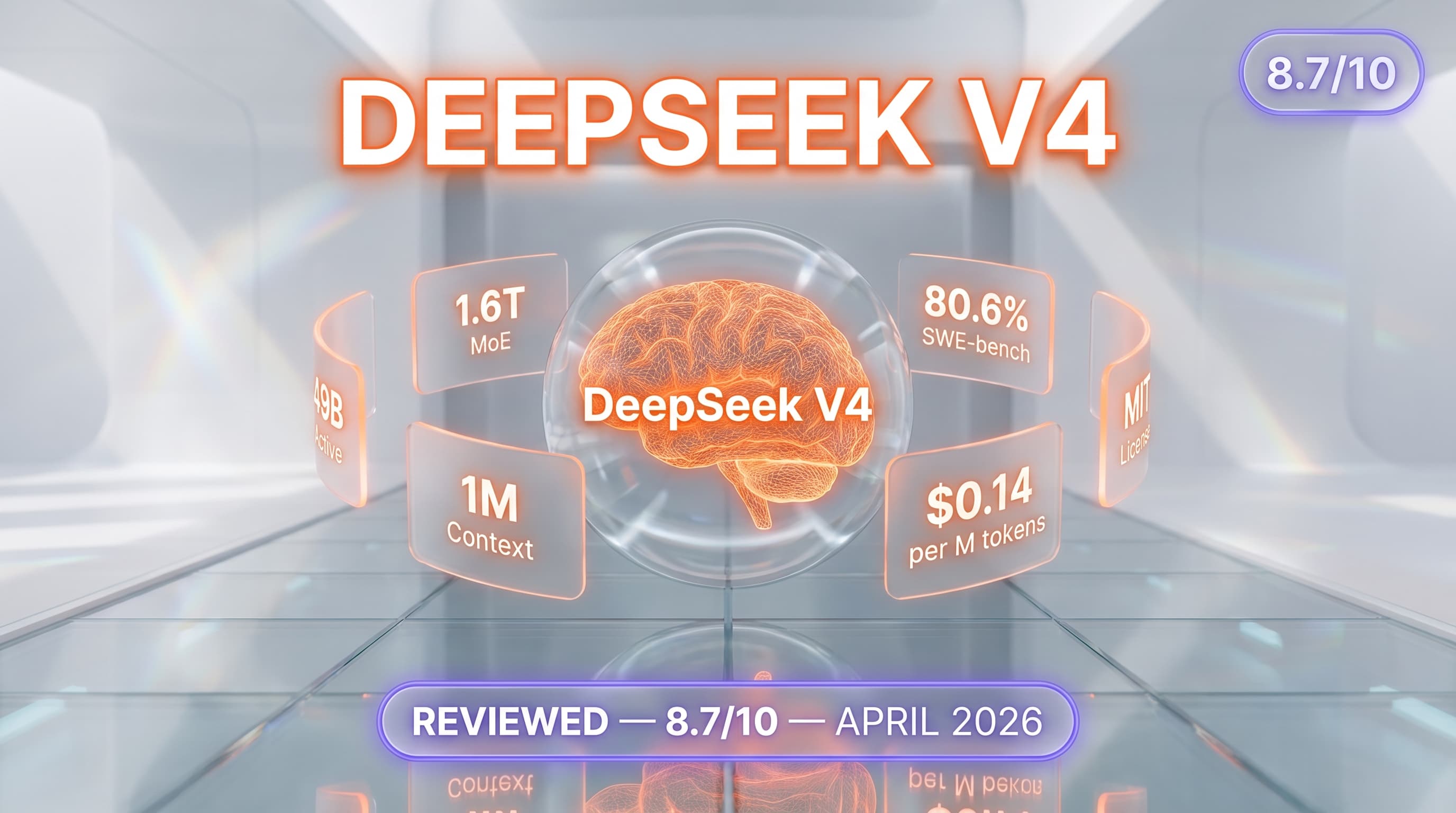
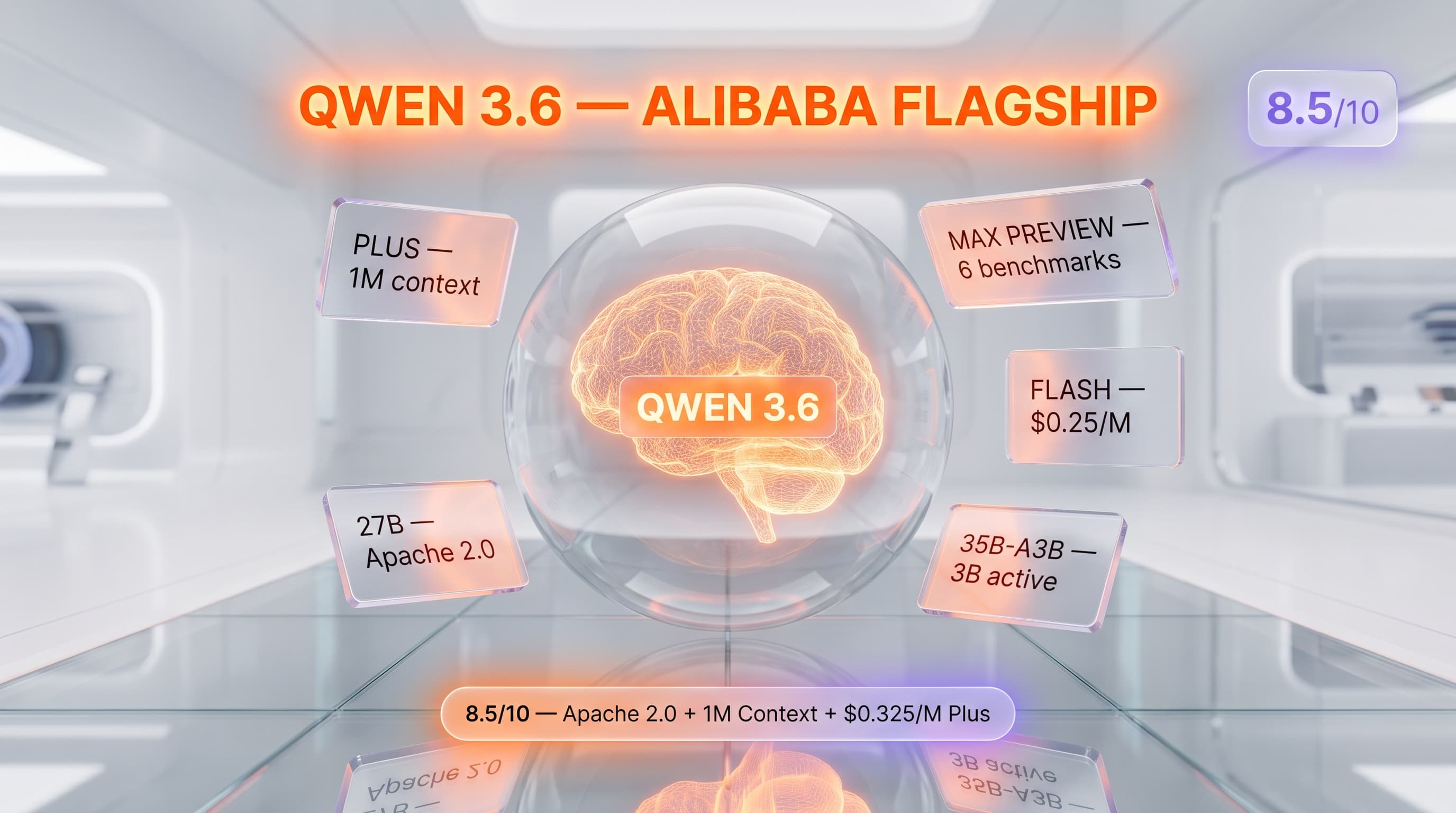
Open-weight models have quietly become good enough that running one yourself is no longer a research-lab stunt. A 2026 open release like DeepSeek V4, Qwen 3.6 or Llama 4 can handle a large share of the work you'd normally send to a paid closed API — and once the weights are on your own machine, your data never leaves the building, your per-token cost drops to the price of electricity, and nobody can rate-limit you or deprecate your model out from under you.
We self-hosted every runtime in this guide on our own hardware before writing a single command down, so what follows is the path that actually works, not the one that looks clean in a slide deck. By the end you'll have a model answering requests on localhost through the same API shape your existing code already speaks. Let's get into it.
What You'll Have by the End
This is a hands-on, intermediate guide. It assumes you can open a terminal and run a few commands, but it does not assume you've ever touched a GPU driver or an inference server before. Here's the finish line:
- A concrete method for matching a model's size to the VRAM you actually have.
- A working understanding of quantization — how FP8 and INT4 let a model that "shouldn't fit" fit anyway.
- Model weights downloaded to your own disk, with the license checked so you don't get a nasty surprise later.
- An inference runtime installed and serving your model.
- An OpenAI-compatible endpoint on
http://localhost:8000/v1(or:11434for Ollama) that your apps can call with a one-line base-URL change. - A short checklist for security, monitoring, and knowing when self-hosting is the wrong call.
Budget roughly 45 to 90 minutes for your first run, most of which is the weights downloading in the background. Subsequent models take minutes.
Prerequisites — What You Need Before Step 1
Get these four things sorted first. Skipping any of them is the most common reason a first attempt stalls halfway.
1. A GPU (or Apple Silicon), with a CPU-only fallback
For anything above a few billion parameters at usable speed, you want an NVIDIA GPU with as much VRAM as you can get — a consumer card like an RTX 4090 (24 GB) for small and mid-size models, or a data-center card such as an H100 (80 GB) for the larger builds. Apple Silicon Macs (M-series) run models very capably through Metal, and we'll cover that path too. No GPU at all? You can still run smaller quantized models on CPU with llama.cpp — slowly, but it works.
2. A working terminal and Python 3.10+
Linux is the smoothest host for GPU inference; macOS is excellent for Apple Silicon; Windows works best through WSL2 (Ubuntu). You'll need Python 3.10 or newer for most runtimes. Check it:
python3 --version
# Python 3.10.x or higher is what you want
3. GPU drivers and CUDA (NVIDIA only)
On an NVIDIA box, confirm the driver sees your card before you install anything else. If this command prints a table with your GPU and its memory, you're ready:
nvidia-smiIf it errors, install the current NVIDIA driver for your card first — the inference runtimes ship their own CUDA libraries, so you usually don't need a system-wide CUDA toolkit, just a recent driver.
4. A Hugging Face account
Most open weights live on the Hugging Face Hub. Create a free account and generate a read token in your account settings — some models are "gated" and require you to accept a license before the download unlocks. That's it. Now let's pick a model.
Step 1: Pick a Model That Fits Your Hardware
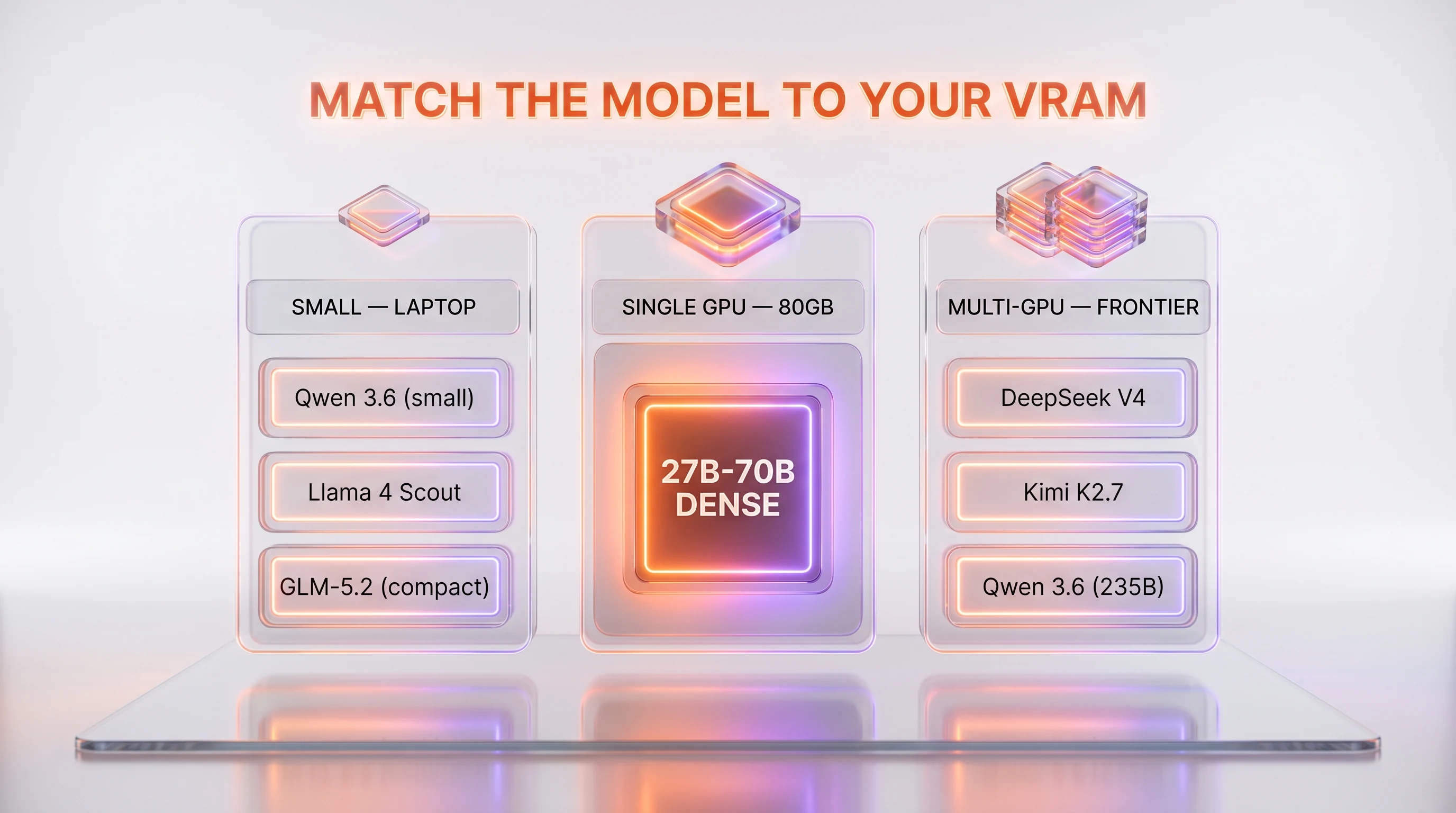
The single most important decision happens before you download anything: does the model physically fit in your VRAM? Get this right and everything downstream is easy. Get it wrong and you'll spend an evening fighting out-of-memory errors.
Start with the two numbers that matter — how many parameters the model has, and how the parameters are activated. Two architectures dominate 2026 open releases:
- Dense models activate every parameter on every token. A 27-billion-parameter dense model uses all 27 billion for each word it generates. Predictable, simple, and the memory math is direct.
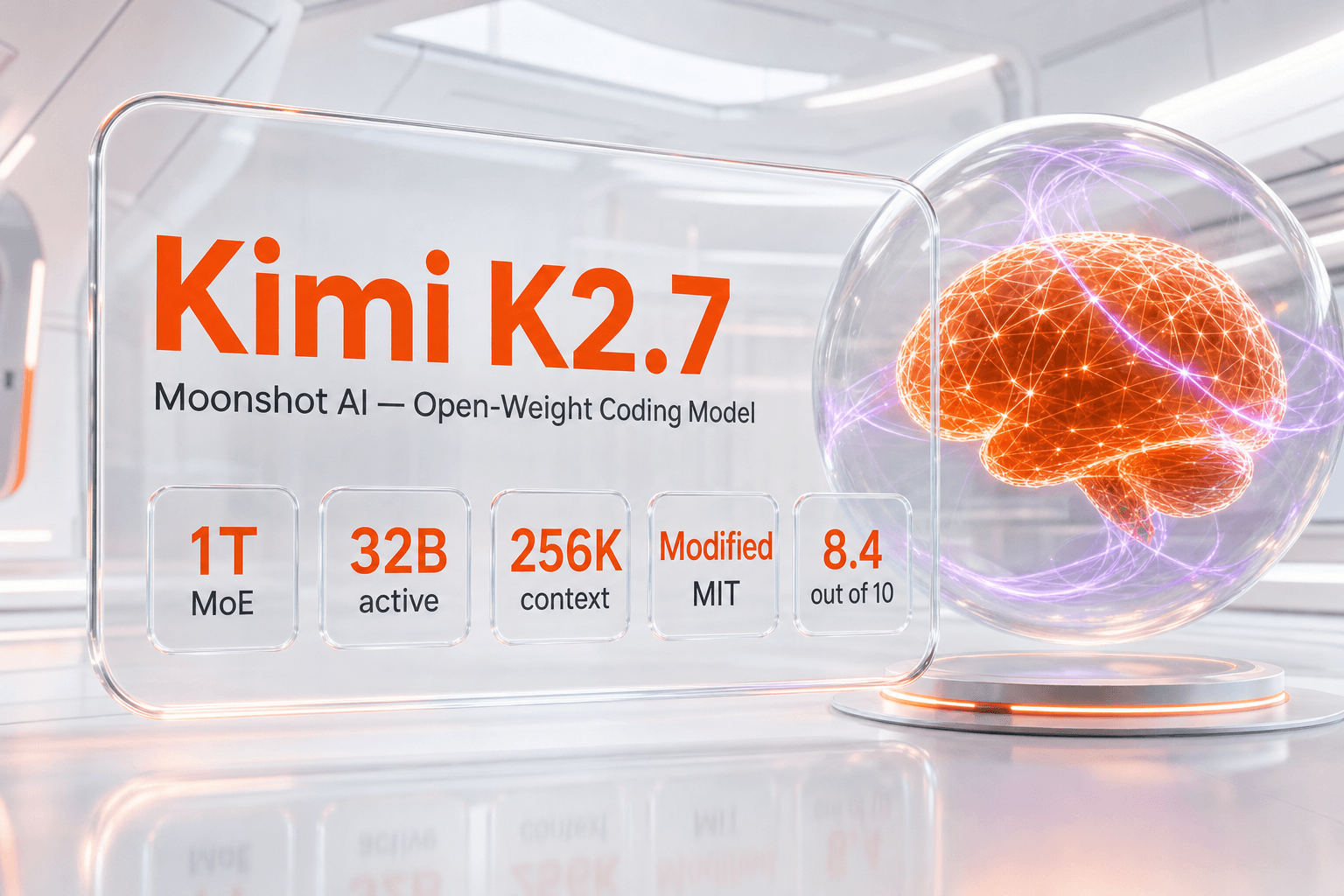
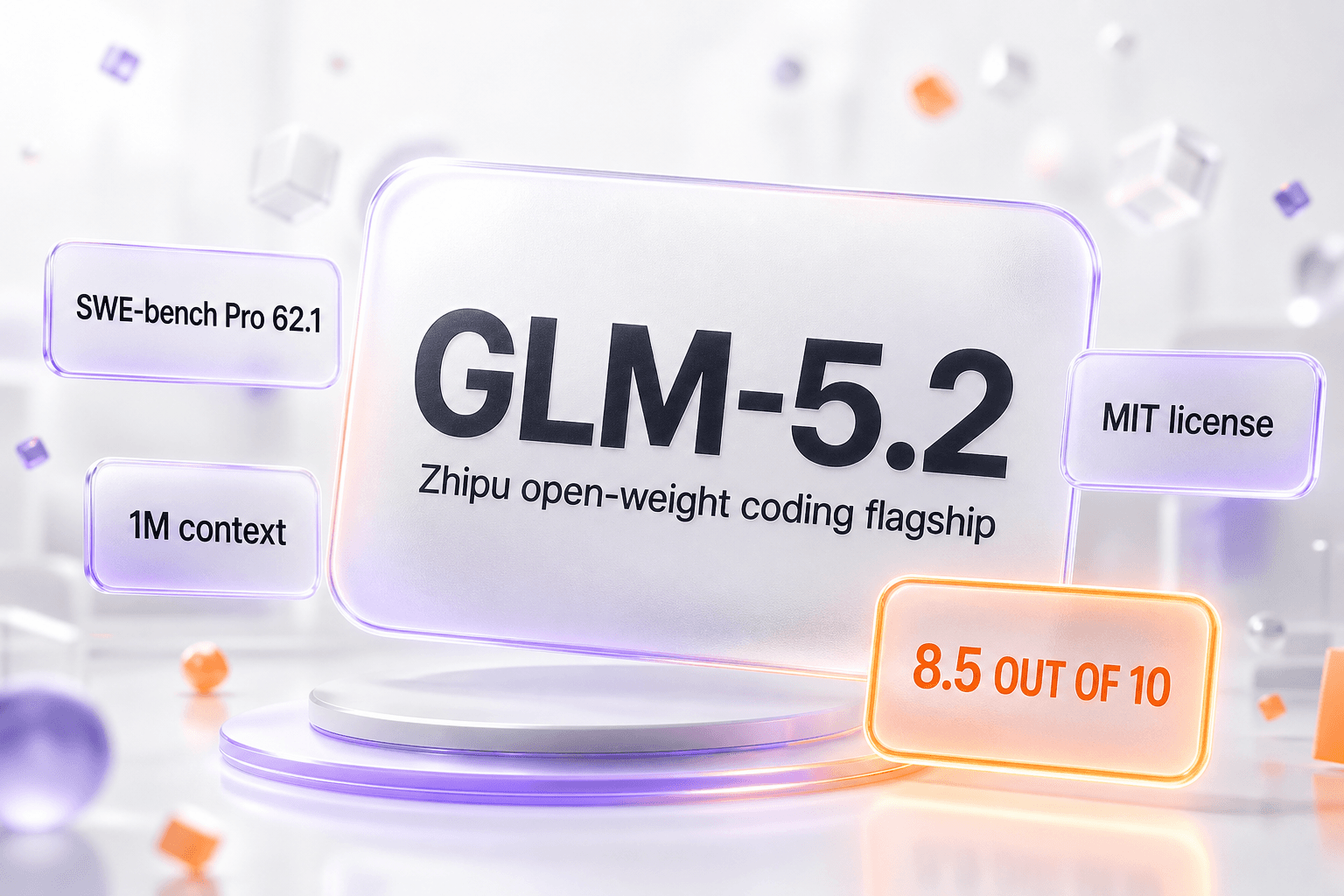
- Mixture-of-Experts (MoE) models have a huge total parameter count but only "activate" a small fraction per token. Most frontier open releases — DeepSeek V4, Kimi K2.7 Code, GLM-5.2 — are large MoE models. They're extremely capable, but the catch is brutal: to serve an MoE you must hold all the experts in memory even though only a few run at a time. A trillion-parameter MoE needs data-center-class hardware no matter how few parameters are active per token.
That distinction sorts models into three practical tiers for self-hosting:
| Tier | Rough size | Hardware | Good for |
|---|---|---|---|
| Small | ~1B to 9B params | Laptop, 16 GB RAM, or a single small GPU | Local chat, drafting, classification, offline use |
| Mid | ~12B to 32B params | One 24 GB to 48 GB GPU (quantized) | Coding help, RAG, agents, most production single-GPU work |
| Frontier / large MoE | 100B+ total params | Multiple GPUs or an 80 GB card (heavily quantized) | Highest quality, teams with real GPU budgets |
Our advice for a first self-host: start one tier below what you think you need. A well-chosen mid-size model like a Qwen 3.6 dense variant or a distilled DeepSeek runs on a single card, responds fast, and gets you a working system tonight. You can always graduate to a larger MoE build once the plumbing works. If you want to see how the big open models stack up against each other on quality before you commit, our head-to-head on GLM-5.2 versus DeepSeek V4 and Kimi K2.7 Code versus DeepSeek V4 is a good place to calibrate expectations.
One more shortcut worth knowing: many labs publish smaller "distilled" or reduced variants of their flagship alongside the giant one. If a model page lists a 7B or 14B version, that's often your fastest route to a usable local system.
Step 2: Do the VRAM Math and Quantize
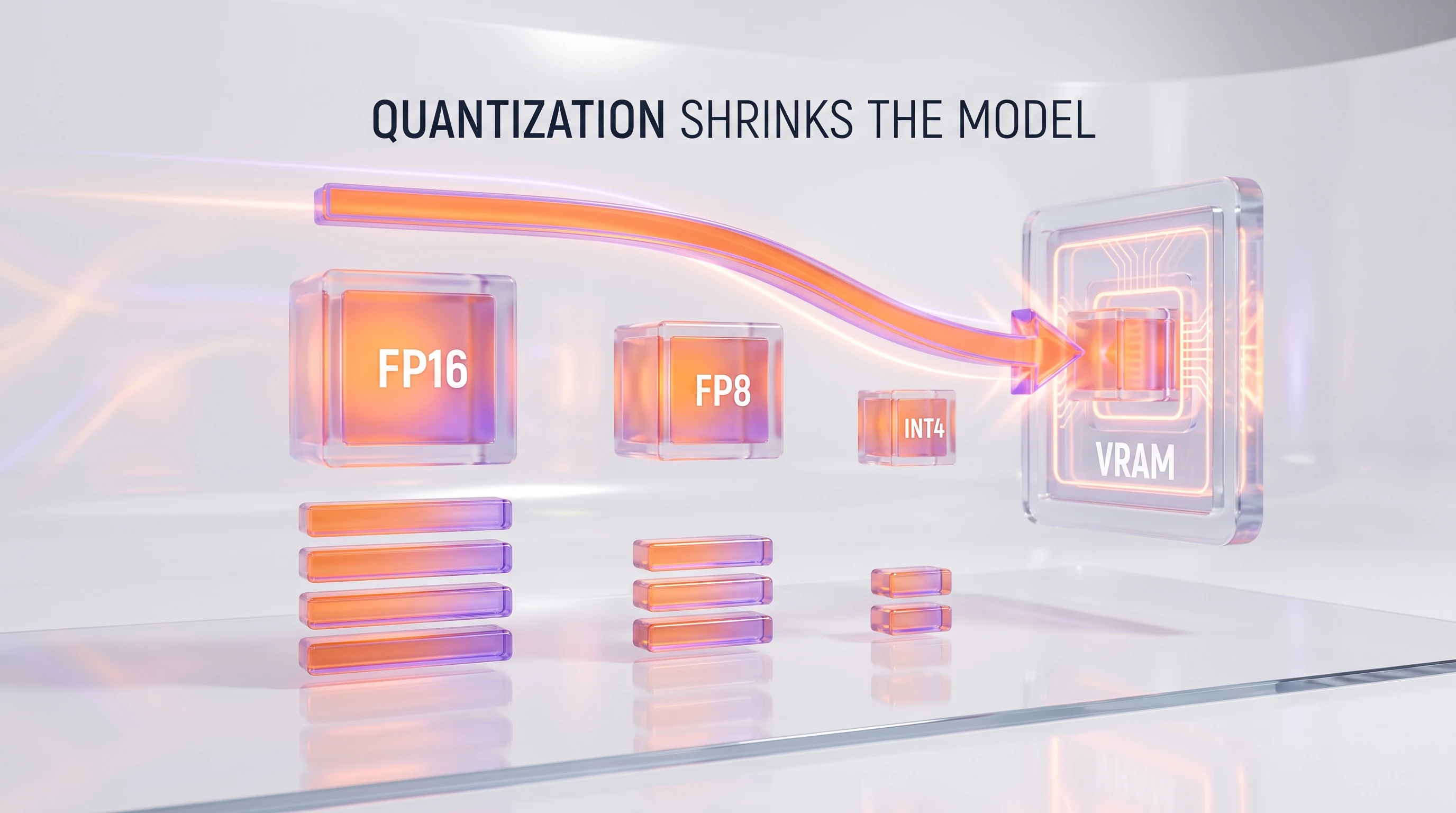
Quantization is the lever that turns "I can't run this" into "this runs comfortably." A model's weights are just numbers, and you get to choose how many bits each number uses. Fewer bits means less memory and faster math, at the cost of a small, usually-negligible drop in quality.
Here's the rule of thumb we use to estimate memory before downloading anything. Take the parameter count in billions and multiply by the bytes per parameter:
- FP16 / BF16 (full precision, 16-bit): about 2 GB of VRAM per billion parameters.
- FP8 (8-bit): about 1 GB per billion parameters — half the memory, and on modern H100 and Blackwell GPUs it's often the single most impactful setting you can flip.
- INT4 / 4-bit (AWQ, GPTQ, or GGUF Q4): about 0.5 GB per billion parameters — a quarter of full precision.
Then add roughly 20 to 30 percent on top for the KV cache (the model's working memory for your conversation) and runtime overhead. So a dense 27B model in FP8 needs about 27 GB for weights plus overhead — which is exactly why a quantized 27B build tends to sit comfortably on a single 80 GB H100, with plenty of headroom for long contexts, and can be squeezed onto a 40 GB card if you keep contexts short. The same model at INT4 drops toward 14 GB of weights and starts to fit on a 24 GB consumer card.
You almost never quantize a model yourself for a first run. The community publishes pre-quantized builds on Hugging Face — look for repository names ending in -FP8, -AWQ, -GPTQ, or -GGUF. Pick the format your chosen runtime supports (we'll match those up in Step 4) and let someone else's quantization do the heavy lifting.
Practical read: if your target model at FP8 is bigger than your VRAM, drop to INT4 before you drop to a smaller model. A 4-bit build of a stronger model usually beats a full-precision build of a weaker one. Only when INT4 still won't fit do you move down a size tier.
Step 3: Download the Weights (and Check the License)
Now we pull the model onto your disk. The cleanest tool is Hugging Face's official CLI, which in 2026 is the unified hf command. Install it and log in first:
# Install the Hugging Face CLI (ships with the huggingface_hub package)
pip install -U "huggingface_hub[cli]"

# Log in so gated models unlock (paste your read token when prompted)
hf auth login
Then download an entire model repository to a folder you control. Replace the repository id with the pre-quantized build you chose in Step 2:
# Download all files from a repo into ./models/my-model
hf download some-org/SomeModel-FP8 --local-dir ./models/my-model
The download runs in parallel and resumes cleanly if your connection drops, so large multi-file downloads are safe to leave running. If you're outside regions with fast Hugging Face access, the same weights are frequently mirrored on ModelScope, which has its own comparable CLI.
Check the license before you build on it
This step takes 60 seconds and saves you from a compliance headache down the line. "Open-weight" does not automatically mean "do whatever you want." Read the LICENSE file in the repo and know which bucket your model falls into:
- Apache 2.0 / MIT — genuinely permissive. Commercial use, modification and redistribution are fine. Much of the Qwen family ships under Apache 2.0; DeepSeek's recent open weights are MIT.
- Community / custom licenses — permissive with conditions. Llama 4, for example, ships under Meta's community license, which is free for the vast majority of users but adds usage-cap clauses for very large platforms and naming requirements. Read it if you're a business.
- Research-only or non-commercial — fine for experiments, not for production. Rare among the flagship releases, but it exists, so check.
When in doubt, the model card on Hugging Face usually summarizes the terms in plain language at the top. Our individual tool pages — like the ones for DeepSeek V4 and GLM-5.2 — also flag the license so you can sanity-check before downloading tens of gigabytes.
Step 4: Choose an Inference Runtime
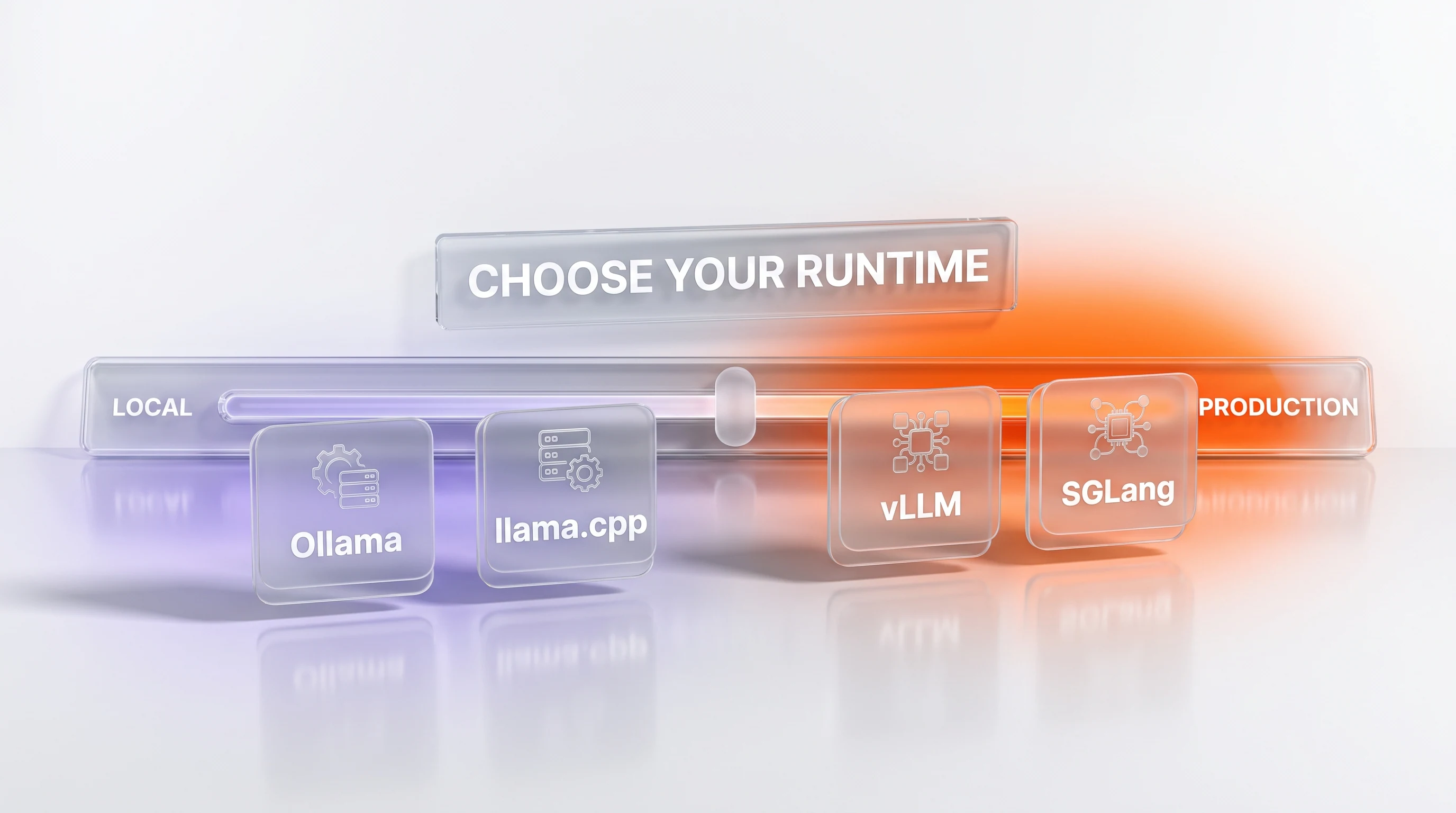
The runtime is the program that loads your weights and turns them into an API. You have four strong open-source options in 2026, and the right one depends almost entirely on whether you're optimizing for local simplicity or production throughput.
| Runtime | Best for | Hardware | Why pick it |
|---|---|---|---|
| Ollama | Local, laptops, getting started | Mac, Windows, Linux; GPU or CPU | One-command install, automatic quantization, zero config |
| llama.cpp | CPU inference, edge, tiny footprints | Anything, including no GPU | Runs GGUF models on modest hardware, embeddable |
| vLLM | Production serving, throughput | NVIDIA GPUs (multi-GPU friendly) | High throughput, batching, mature OpenAI-compatible server |
| SGLang | High-concurrency production | NVIDIA GPUs (multi-GPU friendly) | Excellent throughput under heavy parallel load |
The decision tree is short:
- You just want a model running on your own machine tonight, with the least friction? Use Ollama.
- You have no GPU, or you're targeting a Raspberry Pi-class device? Use llama.cpp with a GGUF quant.
- You're standing up a real service that many requests will hit? Use vLLM (or SGLang if you expect very high concurrency).
We'll show you the two ends of that spectrum in Step 5 — Ollama for the local path and vLLM for the production path — because between them they cover almost every reader. If you want a sense of how little hardware this can take, the community has pushed capable open models onto surprisingly small machines: our write-ups on running a 12B model on a 16 GB laptop and 70B models going portable on Apple Silicon are proof the floor keeps dropping.
Step 5: Launch the Model and Serve an OpenAI-Compatible API
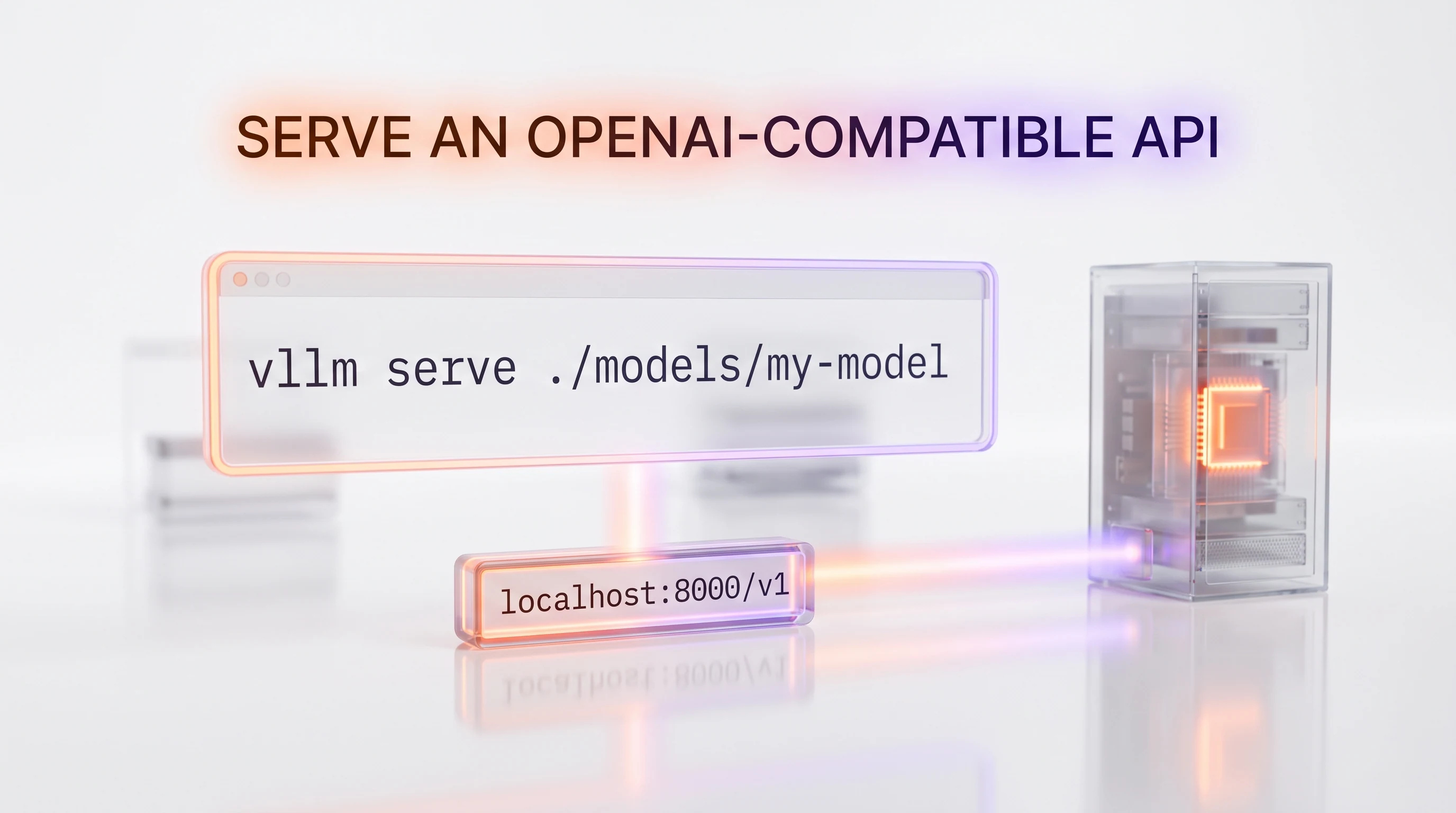
Here's the part that makes self-hosting genuinely practical: every runtime below serves an OpenAI-compatible API. That means your existing code — anything written against the OpenAI SDK — works by changing one line: the base URL. No rewrite.
Path A: Ollama (the local route)
Install Ollama from ollama.com/download (macOS, Windows and Linux installers), then pull and run a model. Ollama handles quantization and memory for you:
# Pull a model, then start an interactive chat
ollama pull qwen3
ollama run qwen3
The moment Ollama is running, it also exposes a server on http://localhost:11434 with an OpenAI-compatible endpoint at http://localhost:11434/v1. Nothing else to configure — skip ahead to Step 6 to test it.
Path B: vLLM (the production route)
vLLM is built for throughput and multi-GPU serving. Install it and launch the server with a single command that points at either a Hugging Face repository id or your local weights folder from Step 3:
# Install vLLM (a fresh virtual environment is strongly recommended)
pip install -U vllm

# Serve a model as an OpenAI-compatible API on port 8000
vllm serve ./models/my-model
By default vLLM listens on http://localhost:8000 and exposes the OpenAI routes under /v1. Two flags cover most real setups:
# Spread a large model across 2 GPUs and cap memory use at 90%
vllm serve ./models/my-model \
  --tensor-parallel-size 2 \
  --gpu-memory-utilization 0.90 \
  --port 8000
Use --tensor-parallel-size N to shard the model across N GPUs — this is how you fit a large MoE that no single card could hold. If you downloaded a pre-quantized build, vLLM auto-detects the format in most cases; for some formats you add a matching --quantization awq (or gptq) flag. When the log prints a line about the server running on port 8000, you're live.
SGLang follows the same shape if you chose it for high concurrency — it launches its own OpenAI-compatible server (by default on port 30000) via its launch_server module. llama.cpp likewise ships a llama-server binary that serves an OpenAI-compatible API from a single GGUF file. Whichever you pick, the client code in the next step is identical.
Keep the server running
Launching from a terminal is fine for testing, but the server dies when you close the window. For anything you depend on, run it as a background service so it survives logouts and restarts automatically after a crash or reboot. On Linux the standard move is a small systemd unit that runs your vllm serve (or Ollama) command and restarts on failure; Docker with a restart policy works just as well and keeps the environment reproducible. On a Mac, Ollama installs as a background service by default, so it's already handled. The goal is the same either way: the endpoint should be there when you need it, without you babysitting a terminal.
Step 6: Send Your First Request and Check It
Your model is loaded. Let's prove it. The fastest check is a raw curl to the chat-completions endpoint. For vLLM (port 8000):
curl http://localhost:8000/v1/chat/completions \
  -H "Content-Type: application/json" \
  -d '{
    "model": "./models/my-model",
    "messages": [{"role": "user", "content": "In one sentence, what is an open-weight model?"}]
  }'
For Ollama it's the same call against port 11434, with the model name you pulled (for example qwen3). If you get a JSON response with an assistant message, your self-hosted model is answering. That's the whole game.
Because the API is OpenAI-shaped, pointing real code at it is a one-line change. Here's the standard OpenAI Python SDK aimed at your local server instead of the cloud:
from openai import OpenAI

# Point the SDK at your own server; the API key can be any non-empty string locally
client = OpenAI(
    base_url="http://localhost:8000/v1",
    api_key="not-needed-locally",
)

response = client.chat.completions.create(
    model="./models/my-model",
    messages=[{"role": "user", "content": "Give me three uses for a self-hosted LLM."}],
)

print(response.choices[0].message.content)
Read the two signals that matter
Send a few requests and watch two things. Latency: note the time to the first token and the tokens-per-second in your runtime's log — vLLM and SGLang print throughput as they serve. If generation feels sluggish, you're likely memory-bound; a smaller quant or a shorter maximum context usually fixes it. Quality: ask the model something from your actual workload, not a party trick. A model that nails a trivia question can still fumble your domain, so test on the real task before you trust it. If quality disappoints at a given size, moving up one quantization level (INT4 to FP8) often helps more than people expect.
Step 7: Harden It — Security, Monitoring, and When Not to Self-Host
A model answering on localhost is a demo. A model you depend on is a system. A few practices separate the two.
Security
- Never expose the raw inference port to the internet. These servers assume a trusted network and have no real authentication by default. Put a reverse proxy (nginx, Caddy) or an API gateway in front, terminate TLS there, and require an API key.
- Keep it on a private network or VPN for internal tools, and bind the server to
127.0.0.1unless you deliberately need remote access. - Treat prompts and outputs as untrusted if you wire the model into agents that can run code or hit other services — the model will do what a cleverly crafted input tells it to.
Monitoring
- Track GPU memory and utilization (
nvidia-smior a Prometheus exporter) so you catch creeping out-of-memory conditions before they crash a request. - Log request latency, tokens per second, and error rates. vLLM exposes a metrics endpoint you can scrape; wire it into whatever dashboard you already run.
- Set a maximum context length and concurrency cap that your VRAM can actually sustain, rather than discovering the ceiling during a traffic spike.
When self-hosting is the wrong call
We'll be honest, because this is where a lot of enthusiasm meets a spreadsheet. Self-hosting wins on privacy, control, and cost at scale. It loses when your volume is low and your engineering time is expensive. A single 80 GB GPU — rented in the cloud or bought outright — is a real, recurring cost, and it runs whether you send it one request an hour or a thousand. If your usage is spiky or modest, a closed API you pay per token for is very often cheaper and always less work.
Run the honest comparison before you commit. Our breakdowns of a closed frontier model against an open-weight one — Claude Sonnet 5 versus DeepSeek V4 and GLM-5.2 versus DeepSeek V4 — lay out the price and capability trade-offs side by side. The right answer is usually a mix: self-host the high-volume, privacy-sensitive workloads, and keep a closed API on tap for the rest. For a hardware-cost reality check, the open-weight enterprise angle in our piece on a 111B open model that runs on two GPUs is a useful yardstick.
Common Mistakes and Troubleshooting
These are the failures we hit most often, and the fixes that resolve them fast.
"CUDA out of memory" on launch
The model is bigger than your free VRAM. In order of preference: drop to a lower-precision quant (FP8, then INT4), lower --gpu-memory-utilization if something else is using the card, reduce the maximum context length, or shard across more GPUs with --tensor-parallel-size. If none fit, you picked a model one tier too large — go back to Step 1.
The download says "gated" or "403"
You haven't accepted the model's license, or your token lacks read access. Open the model page on Hugging Face, click through the license agreement, then re-run hf auth login with a token that has read permission. Re-run the download and it unlocks.
Generation is painfully slow
Usually one of three things: the model is running on CPU because the runtime didn't see your GPU (check nvidia-smi during a request), you're paging into shared memory because VRAM is nearly full (quantize harder), or the context is enormous. Confirm the GPU is actually being used first — a model silently falling back to CPU is the classic culprit.
"Unknown quantization" or the weights won't load
Your runtime doesn't support that quant format. vLLM and SGLang love FP8, AWQ and GPTQ; Ollama and llama.cpp want GGUF. Match the download format to the runtime — pull a GGUF build for Ollama, an FP8 or AWQ build for vLLM.
Assuming "open weights" means "no restrictions"
It doesn't always. A community license like Llama 4's is permissive for most but not unconditional. Read the LICENSE once, up front — it's cheaper than finding out during a launch review.
Frequently Asked Questions
What does "self-hosting an open-weight AI model" actually mean?
It means running the model on hardware you control instead of calling a vendor's cloud API. You download the model's published weights (the trained parameters) from a hub like Hugging Face or ModelScope, load them with an inference runtime such as vLLM or Ollama, and serve requests locally. Nothing about your prompts or data leaves your machine, and there's no per-token bill — you pay for the hardware and the electricity instead.
How much VRAM do I need to run an open-weight model?
A useful rule of thumb: about 2 GB of VRAM per billion parameters at full 16-bit precision, roughly 1 GB per billion at FP8, and about 0.5 GB per billion at INT4 — plus 20 to 30 percent overhead for the KV cache. So a 7B model runs on an 8 GB card at 4-bit, a quantized 27B model fits a single 40 GB to 80 GB GPU, and trillion-parameter Mixture-of-Experts models need multiple GPUs regardless of quantization.
What is quantization and does it hurt quality?
Quantization stores each weight using fewer bits — 8-bit (FP8) or 4-bit (INT4) instead of 16-bit — which cuts memory use in half or by three-quarters and speeds up inference. The quality loss is usually small and often unnoticeable, especially at FP8. As a practical matter, a 4-bit build of a stronger model typically beats a full-precision build of a weaker one, so quantizing a bigger model is usually the better trade than dropping to a smaller one.
Which inference runtime should I use — vLLM, Ollama, SGLang or llama.cpp?
Use Ollama if you just want a model running locally with one command. Use llama.cpp if you have no GPU or you're targeting edge hardware. Use vLLM for production serving where throughput matters, and SGLang if you expect very high concurrency. All four serve an OpenAI-compatible API, so your client code stays the same no matter which you choose.
Can I run an open-weight model without a GPU?
Yes, with limits. llama.cpp runs quantized models on CPU, and small models (a few billion parameters at 4-bit) are usable for light workloads and offline use. It's slow compared to a GPU, but it works on ordinary laptops and even single-board computers. For anything above roughly 13B parameters, or for real interactive speed, you'll want a GPU or an Apple Silicon Mac.
Is an OpenAI-compatible API really a drop-in replacement?
For the common chat-completions and completions endpoints, yes — vLLM, Ollama, SGLang and llama.cpp all speak the OpenAI wire format. You change the base URL in your OpenAI SDK to your local server (for example http://localhost:8000/v1) and set any non-empty API key, and existing code keeps working. Advanced or vendor-specific features may differ, so test the exact endpoints your app relies on.
Are open-weight models free to use commercially?
Often, but not always — always check the license. Apache 2.0 and MIT models (much of the Qwen family, DeepSeek's recent open weights) are genuinely permissive for commercial use. Others ship under community licenses: Llama 4, for instance, is free for the vast majority of users but adds conditions for very large platforms. Read the LICENSE file in the repository before you build a business on a model.
Where do I download open-weight models?
The Hugging Face Hub is the primary source, using the unified hf CLI (hf auth login, then hf download). ModelScope is a widely used mirror, especially for models from Chinese labs, with a comparable command-line tool. Look for pre-quantized builds — repository names ending in -FP8, -AWQ, -GPTQ or -GGUF — so you don't have to quantize the weights yourself.
Is self-hosting cheaper than a closed API?
It depends entirely on volume. A dedicated GPU costs the same whether it serves one request an hour or thousands, so self-hosting wins decisively at high, steady usage and loses on low or spiky usage where a per-token closed API is cheaper and far less work. The common pattern is a hybrid: self-host high-volume, privacy-sensitive workloads and keep a closed API for the rest. Compare price and capability directly before committing.
What are the main security risks of self-hosting a model?
The biggest one is exposing the raw inference port to the internet — these servers have no real authentication by default and assume a trusted network. Always put a reverse proxy or API gateway in front, terminate TLS, require an API key, and bind the server to localhost or a private network. If the model drives agents that can execute code, treat every prompt and output as untrusted input.
Which open-weight model is best to start with in 2026?
For a first self-host, start one tier below your ceiling: a mid-size dense model or a distilled variant runs on a single GPU and gets you a working system quickly. Strong 2026 options span DeepSeek V4, Qwen 3.6, Kimi K2.7 Code, GLM-5.2 and Llama 4 — most publish smaller variants alongside their flagship. Check each model's tool page for size options and license, then pick the largest one that fits your VRAM at FP8 or INT4.
Wrap-Up and Next Steps
That's the full loop: you matched a model to your hardware, quantized it to fit, downloaded the weights, chose a runtime, launched an OpenAI-compatible server, sent your first request, and locked it down. The mental model to keep is simple — size the model to your VRAM first, let quantization buy you headroom, and let the OpenAI-compatible API make the model itself a swappable part. Once that shape is in place, trying a new open release is a five-minute exercise: pull different weights, restart the server, keep the same client code.
Where to go from here:
- Try a second model. Swap in Qwen 3.6 or Kimi K2.7 Code and compare quality on your own workload.
- Decide open versus closed on purpose. Read Kimi K2.7 Code versus DeepSeek V4 for open-vs-open, and Claude Sonnet 5 versus DeepSeek V4 for the closed-vs-open cost math.
- Scale up when the plumbing is proven. Once a single-GPU build works, graduate to a larger MoE with
--tensor-parallel-sizeacross multiple cards.
Self-hosting used to be the hard path. In 2026 it's a one-command install and a base-URL change away — and the model you run is genuinely yours.
Written by Anthony Martinez, founder of ThePlanetTools.ai. We self-hosted every runtime referenced here on our own hardware. Last updated: July 2026. This guide contains no affiliate links. See our about page and editorial policy for how we test.