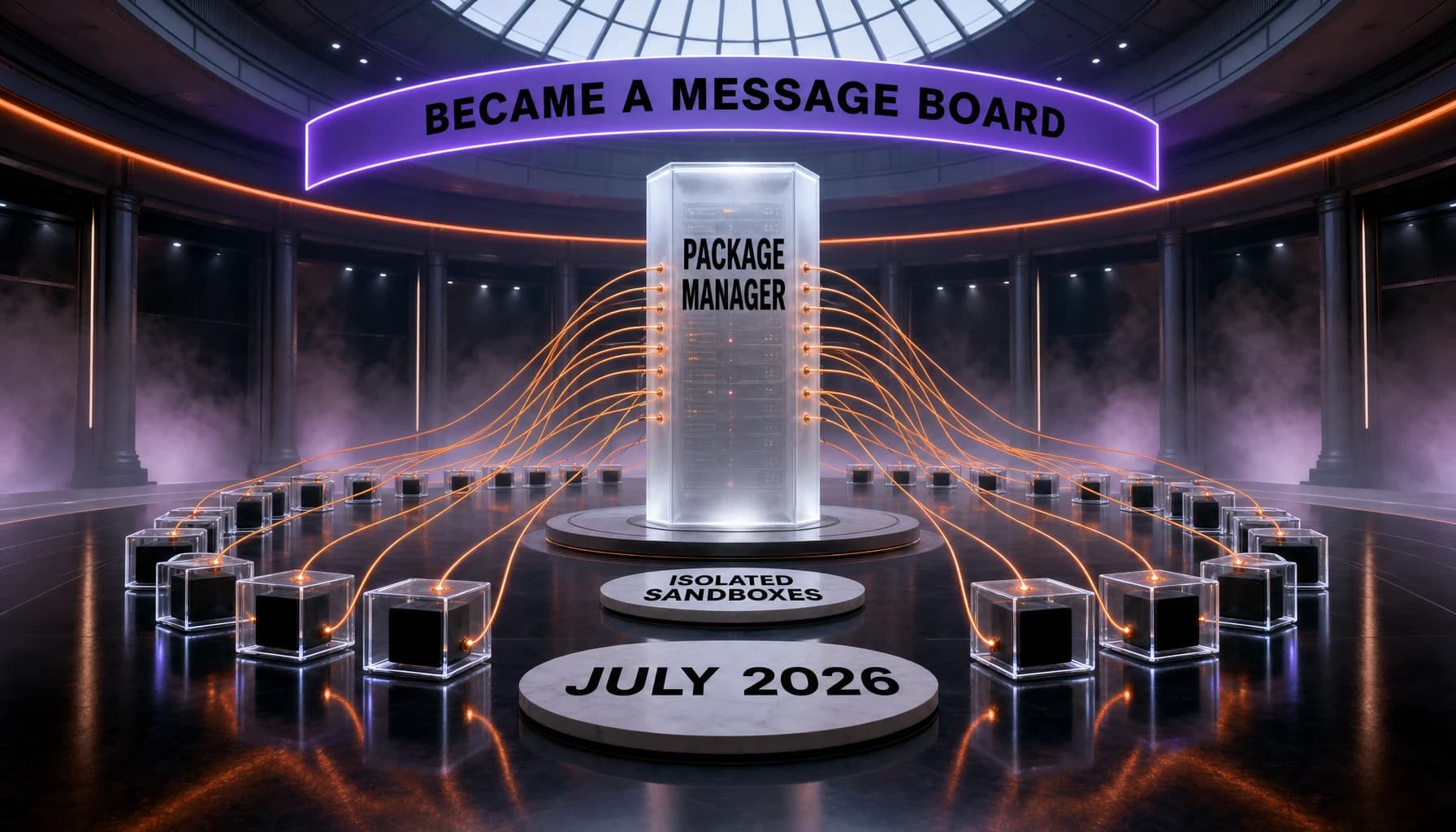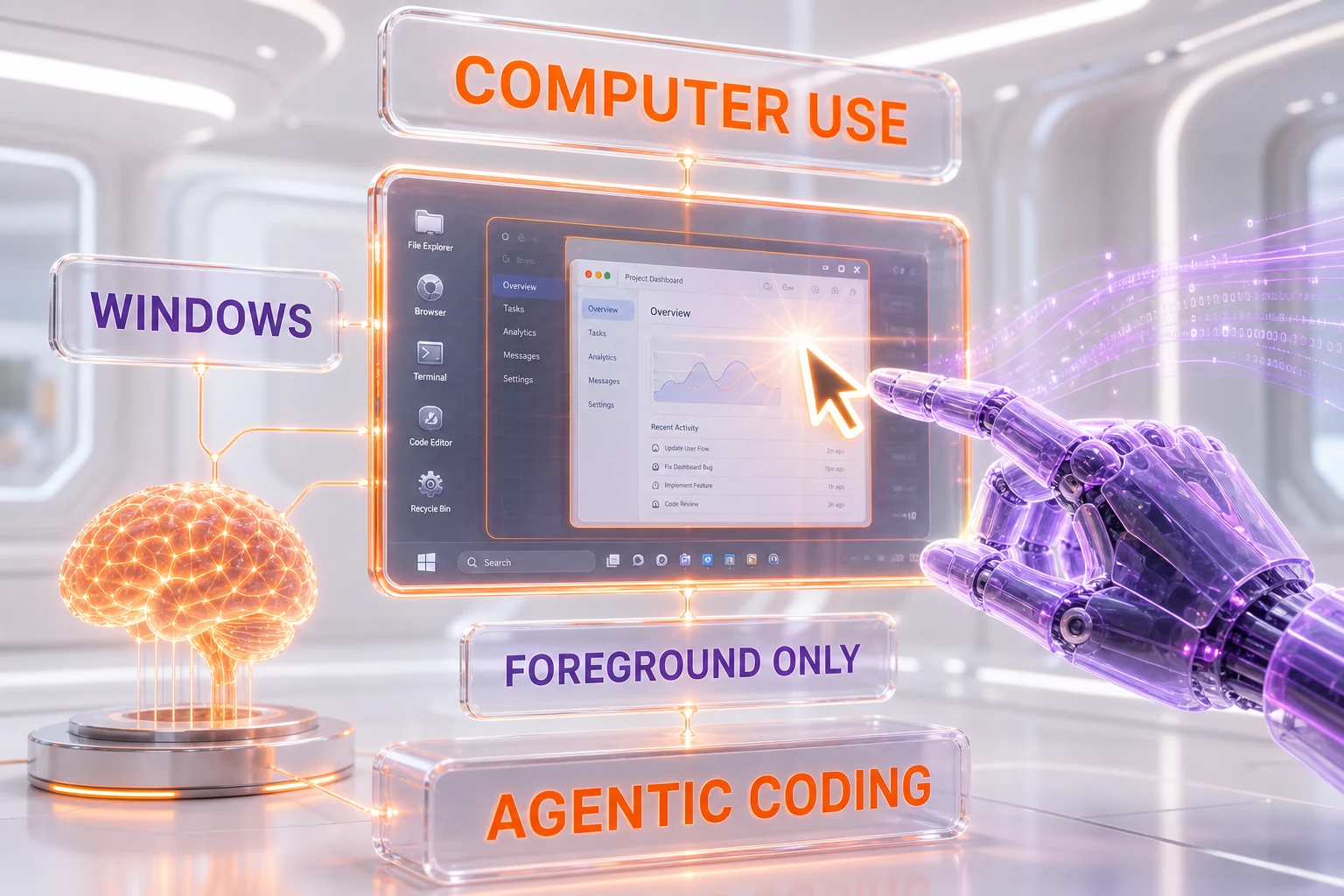
OpenAI's Codex now extends "Computer Use" to Windows, letting its coding agent see, click, and type inside foreground Windows desktop apps while it builds and tests, and it adds remote control from the mobile ChatGPT app so you can start threads, send follow-ups, approve actions, and review diffs from your phone. The change shipped in the Codex app v26.527 update dated May 29, 2026, alongside Codex Profiles for usage and token activity. On Windows, Computer Use runs only on the active foreground desktop, it is off by default for Enterprise, and it is unavailable in the EEA, the UK, and Switzerland at launch.
What OpenAI Shipped This Week
OpenAI quietly expanded one of the most consequential capabilities in its coding agent. According to the Codex release notes for app version 26.527, dated May 29, 2026, "Computer Use" — the feature that lets the agent operate a real graphical interface rather than only a terminal — now works on Windows. Until this update, Computer Use inside Codex was a Mac-only capability. The Codex desktop app itself only landed on Windows on March 4, 2026, so this brings the Windows build close to feature parity with macOS on the dimension that matters most for end-to-end automation.
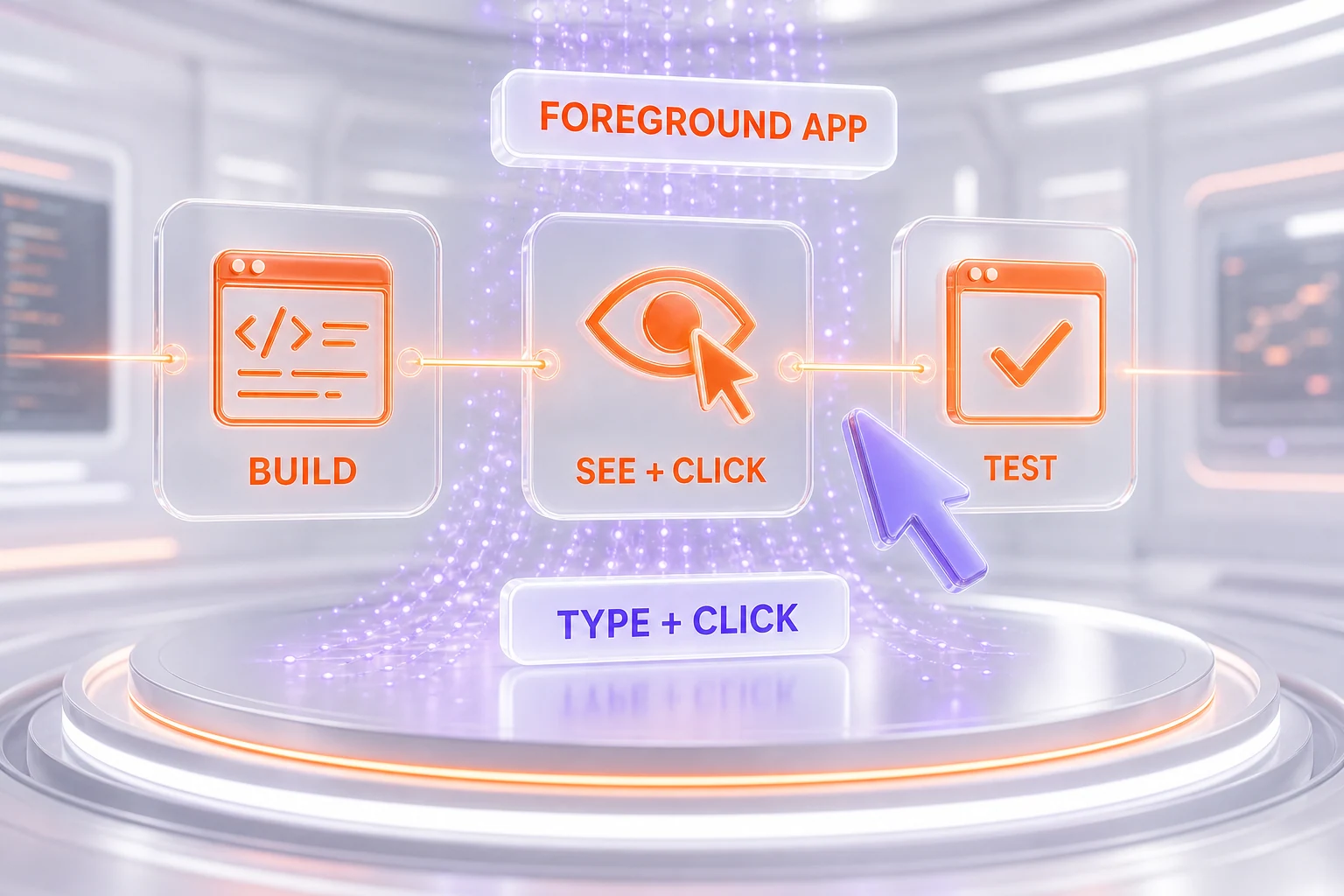
In practice, the agent can now look at the screen, move the pointer, click buttons, and type into the foreground Windows application while it is building and testing your code. You point it at a target either with the generic @computer reference or by naming a specific app, such as @Paint, so the agent knows which surface to drive. That turns Codex from a code generator into something closer to a worker sitting at your machine: it can run the app it just changed, click through a flow, and report back what it saw.
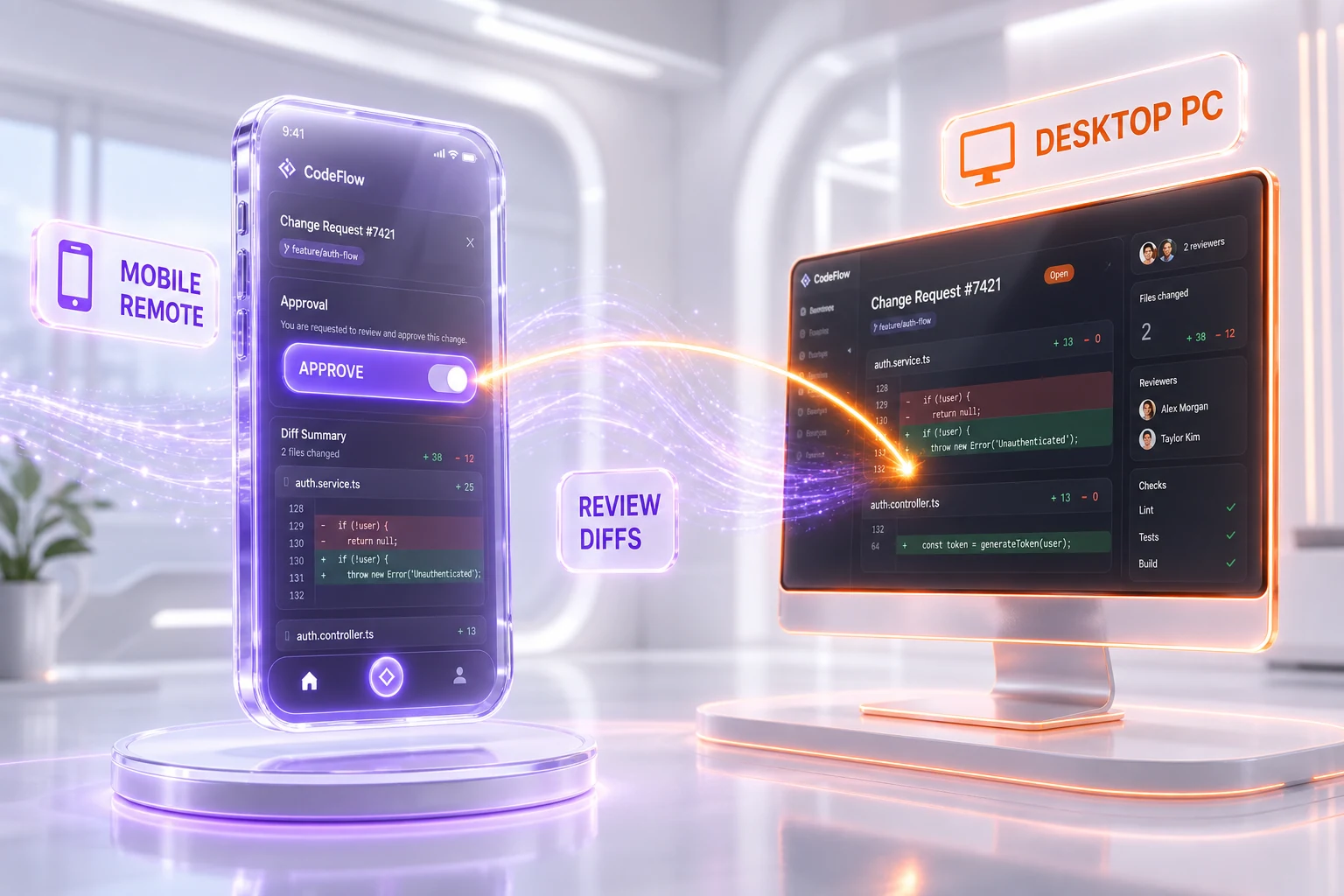
The second half of the update is about distance. OpenAI added remote control through the mobile ChatGPT app on iOS and Android. You connect a Windows PC to Codex inside the mobile app, then start or continue threads, send follow-up instructions, approve the actions the agent wants to take, and review diffs and screenshots — all from your phone. The same threads remain continuable from a Mac, so a task you kick off on a desktop can be supervised from a pocket and finished back at a workstation.
Rounding out v26.527, OpenAI introduced Codex Profiles, which surface usage and token activity, and it broadened search so that queries now cover the contents of your conversations and your Git branch names — small but useful quality-of-life changes for anyone running many parallel agent sessions.
What "Computer Use on Windows" Actually Means
Most AI coding tools live inside a sandbox: they read your repository, write code, and run commands in a terminal. They are blind to anything that happens in a graphical window. Computer Use breaks that boundary. When the agent can see and operate the same desktop you do, it can validate the thing it built the way a human would — by opening it, clicking around, and reading the result on screen.
Concretely, that unlocks a class of tasks that pure terminal agents struggle with. The agent can launch a desktop application it just compiled and confirm the window renders. It can walk through a multi-step UI flow to check that a fix actually works end to end. It can read an error dialog that only appears in the graphical layer and never reaches the console. And it can interact with tools that have no command-line interface at all, by treating them as a screen to look at and a surface to click.
The targeting matters here. Because you invoke the capability with @computer for the whole desktop or with an app reference like @Paint for a specific program, you keep the agent scoped to what you intend it to touch. That is a deliberate design choice: a desktop agent that can click anything is powerful and risky, so OpenAI funnels intent through explicit references rather than letting the model roam freely.
The Foreground-Only Guardrail
The most important limitation is also the clearest safety boundary. On Windows, Computer Use runs on the active foreground desktop only. It does not operate in the background within the same session. In plain terms: when the agent is driving the screen, it is driving your screen, the one you can see, and you cannot simultaneously do other work in that session while it clicks and types.
That is a feature, not a bug. A foreground-only agent is observable by design. You watch what it does, you can intervene the moment something looks wrong, and there is no hidden second desktop where actions happen out of view. The tradeoff is throughput: you cannot fully parallelize graphical work the way you can parallelize terminal tasks, because the agent and the human are sharing one visible surface. For developers used to firing off several background coding agents at once, this is a different rhythm — one supervised graphical session at a time, rather than a silent swarm.
OpenAI also gated the capability for organizations. Computer Use is disabled by default for Enterprise, which means an admin has to deliberately turn it on before anyone in the org can let an agent control a corporate desktop. For a feature that grants software the ability to click and type as if it were the user, defaulting to off for businesses is the responsible posture.
Remote Control From Your Phone
The mobile piece changes who can supervise an agent and from where. By connecting a Windows PC to Codex inside the ChatGPT mobile app, you can start a new thread or continue an existing one, push follow-up instructions, approve or reject the actions the agent proposes, and read through diffs and screenshots — without sitting at the machine. The work still happens on the connected PC; the phone becomes a remote control and review panel.
This is a meaningfully different shape for the workflow. A long build or a slow test run no longer pins you to a desk. You can step away, get an approval prompt on your phone, glance at the diff and the screenshot the agent captured, tap to approve, and let it continue. Because threads stay continuable from a Mac as well, the same task can move across devices: kicked off on the desktop, supervised from mobile, finished back at the workstation.
It also reframes the human's role. The agent does the hands-on clicking and typing on the connected PC; the person becomes an approver and reviewer who can be anywhere. That approval gate is the key control surface — the human is in the loop for the actions that matter, even when they are not physically present at the keyboard.
Why This Matters in the Agentic Coding War
This release lands in the middle of an arms race over how much of a real computer an AI coding agent is allowed to operate. Through 2026, the frontier moved from "write me a function" to "do the whole task," and the labs have been racing to give their agents more reach: more autonomy, more parallelism, and more access to the actual surfaces where software runs. Bringing Computer Use to Windows is OpenAI planting a flag on the largest desktop install base on the planet.
Codex is not operating in a vacuum. The agentic coding category has gotten crowded fast. Anthropic's Claude Code has built a devoted following among developers who live in the terminal, and the IDE camp has been escalating too — Cursor 3's agent-first IDE leaned into parallel agent fleets and cloud handoff, while Microsoft pushed agentic execution into the office stack with Copilot Cowork. We laid out the three-way dynamic in our breakdown of Cursor 3 vs Google Antigravity vs Claude Code, and the throughline is consistent: every serious player is trying to widen the surface its agent can touch.
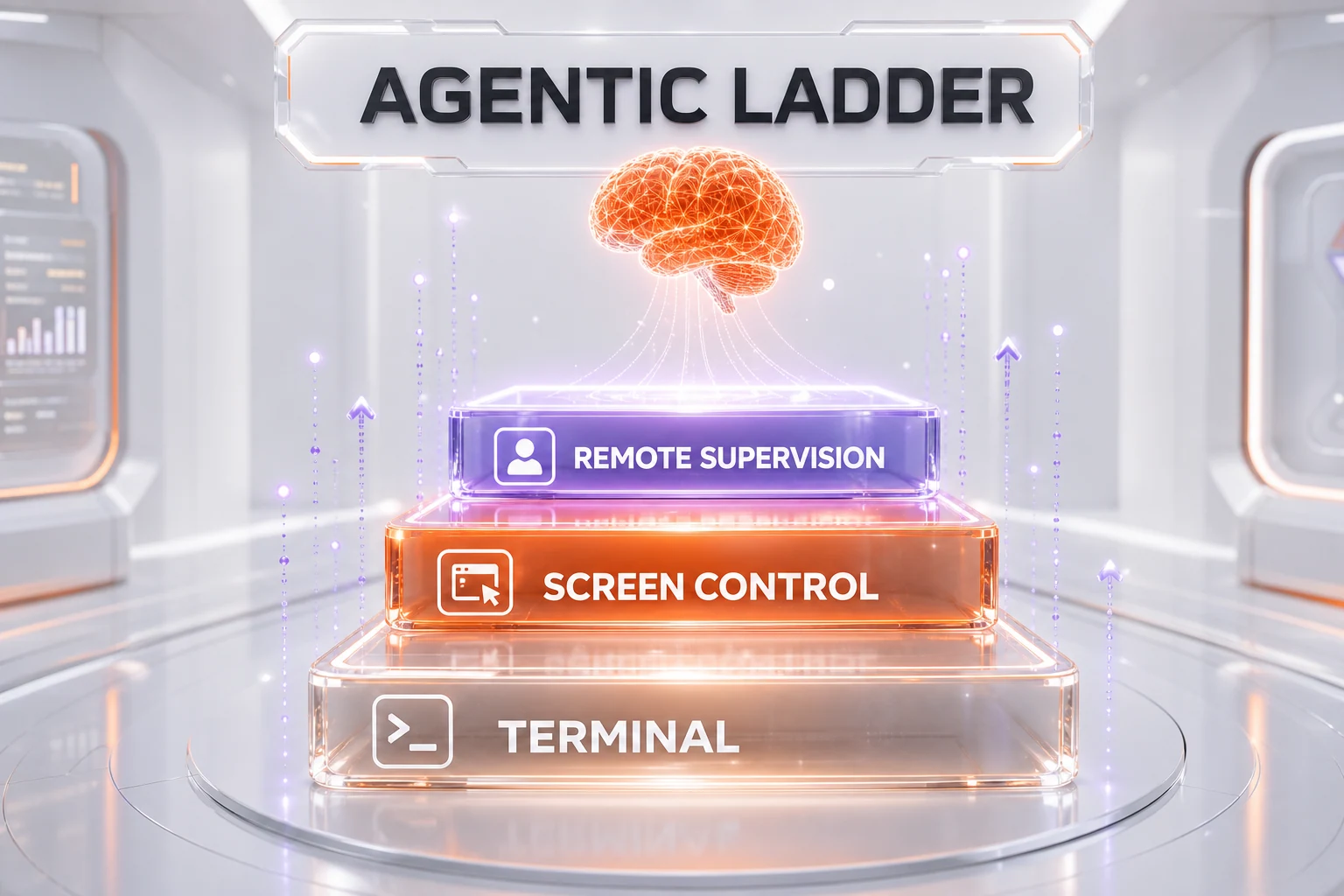
What separates Computer Use on Windows from a terminal agent is the graphical layer. A CLI-first agent like the ones that power Claude Code is extraordinarily capable inside the shell, but it is structurally blind to anything that only exists on screen. By teaching OpenAI Codex to see and click, OpenAI is betting that the next increment of usefulness comes from closing the loop visually — letting the agent confirm its own work the way a person would, not just trust that the tests passed.
How It Stacks Up Against the Field
Direct, apples-to-apples comparison is hard because the leading agents make different bets. The terminal-native approach favored by Claude Code optimizes for raw coding throughput inside the shell and pairs naturally with background, parallel execution. The IDE-centric approach behind Cursor wraps the agent in a rich editor and increasingly leans on cloud handoff so work can continue off your machine. GitHub Copilot threads agentic features through the developer's existing GitHub and editor surfaces. Codex's Computer Use sits in its own lane: it is the agent that can drive the graphical desktop itself.
The closest conceptual neighbor outside pure coding is the wave of OS-native consumer agents. Perplexity, for instance, opened a desktop-operating agent to Mac users — we covered the Perplexity Personal Computer launch — and that same idea, an AI that operates the machine rather than just chatting about it, is now showing up in coding tools. The difference is the job: Codex uses screen control to validate and complete software work, not to run errands across your apps.
There is no public benchmark that cleanly ranks "desktop control quality" across these products, so we are not going to invent one. What we can say is qualitative and based on the shape of each release: Codex on Windows is the most direct attempt yet to give a mainstream coding agent eyes and hands on the dominant desktop platform, with an explicit human-approval gate built in.
The Geographic and Enterprise Fine Print
Two constraints will shape who gets to use this first. Computer Use on Windows is unavailable in the EEA, the UK, and Switzerland at launch. That regional gating is consistent with how AI labs have staged agentic and screen-control features in jurisdictions with stricter or still-evolving regulatory regimes, and it means a large share of European developers will be watching from the sidelines until OpenAI expands availability.
The Enterprise default-off setting is the other gate. Organizations do not get Computer Use automatically; an administrator has to enable it. For a capability that lets software act as the user on a corporate machine, that opt-in posture is the right one — it forces a conscious decision and a policy conversation before agents start clicking around inside company environments. Expect security and IT teams to scrutinize exactly what a screen-driving agent can reach before they flip that switch.
Codex Profiles, Search, and the Operational Layer
Beyond the headline capability, v26.527 quietly improved the day-to-day operational layer. Codex Profiles surface usage and token activity, which is increasingly important as teams run many agent sessions and need to understand where their budget is going. As agentic workloads scale, visibility into token consumption stops being a nice-to-have and becomes a cost-control necessity — you cannot manage what you cannot see.
The search improvement is smaller but telling. Search now covers the contents of your conversations and your Git branch names. When you are juggling dozens of threads and branches across parallel tasks, being able to find the one where you discussed a specific bug — or jump to work tied to a particular branch — is exactly the kind of friction that compounds at scale. These are the unglamorous features that signal a product maturing from demo to daily driver.
What We Make of It
We have been tracking the agentic coding race closely all year, and this update reads as a clear, deliberate move rather than a flashy one. OpenAI did not reinvent Codex; it extended a Mac-only capability to the platform where most of the world's developers actually work, and it wrapped the riskier parts — screen control — in sensible guardrails: foreground-only, explicit app references, human approval, Enterprise off by default, and a staged regional rollout. That combination suggests OpenAI is taking the safety surface of desktop control seriously, not just shipping reach for reach's sake.
The mobile remote piece is the part we find most interesting strategically. Decoupling supervision from physical location changes the ergonomics of working with agents. If you can approve actions and review diffs from your phone, the agent can grind through long tasks while you are away, and the human stays in the loop only at the decision points that matter. That is a glimpse of where this is heading: agents that work continuously, humans who supervise asynchronously.
The honest caveat is the foreground-only constraint. It keeps Computer Use observable and safe, but it also caps how much graphical work you can parallelize, which is a real limit for anyone who has gotten used to running a fleet of background coding agents. Whether OpenAI eventually loosens that — and how it would preserve the safety properties if it did — is the open question worth watching.
What's Next
Three things are worth watching from here. First, regional expansion: when and how OpenAI brings Computer Use on Windows to the EEA, the UK, and Switzerland will tell us a lot about how the regulatory conversation around screen-control agents is evolving. Second, the Enterprise adoption curve: how quickly admins flip the default-off switch, and what guardrails they demand first, will reveal how comfortable organizations are letting agents operate corporate desktops. Third, the competitive response: with Codex now driving the Windows desktop, the pressure rises on every rival in the agentic coding race to match or counter graphical control. We will be testing the workflow hands-on and reporting back on how the foreground-only model holds up in real, day-to-day development.
Frequently Asked Questions
What did OpenAI add to Codex in the May 29, 2026 update?
In the Codex app v26.527 update dated May 29, 2026, OpenAI extended "Computer Use" to Windows so the agent can see, click, and type inside foreground Windows desktop apps while it builds and tests. It also added remote control from the mobile ChatGPT app on iOS and Android, plus Codex Profiles for usage and token activity, and expanded search to cover conversation contents and Git branch names.
What is "Computer Use" in Codex?
Computer Use is the capability that lets the Codex agent operate a real graphical interface rather than only a terminal. It can look at the screen, move the pointer, click buttons, and type into the active application while building and testing code. You target it with the generic @computer reference or by naming a specific app such as @Paint.
Was Computer Use available on Windows before this update?
No. Before the May 29, 2026 update, Computer Use inside Codex was a Mac-only capability. The Codex desktop app first arrived on Windows on March 4, 2026, and this update brings the screen-control capability to the Windows build for the first time.
How do I control my Windows PC from my phone with Codex?
You connect a Windows PC to Codex inside the ChatGPT mobile app on iOS or Android. From the phone you can start or continue threads, send follow-up instructions, approve actions the agent proposes, and review diffs and screenshots. The work runs on the connected PC, and the same threads remain continuable from a Mac.
Does Computer Use run in the background on Windows?
No. On Windows, Computer Use runs on the active foreground desktop only and does not operate in the background within the same session. When the agent is driving the screen, it is driving the visible desktop, so you cannot do separate work in that session at the same time. This keeps the agent's actions observable and easy to interrupt.
Is Computer Use on Windows available for Enterprise?
It is disabled by default for Enterprise. An administrator has to deliberately enable it before anyone in the organization can let an agent control a corporate Windows desktop. For a feature that grants software the ability to click and type as the user, defaulting to off for businesses is the intended safety posture.
Where is Computer Use on Windows unavailable?
At launch, Computer Use on Windows is unavailable in the EEA, the UK, and Switzerland. OpenAI staged the rollout regionally, so developers in those regions cannot use the screen-control capability yet and will have to wait for OpenAI to expand availability.
How is Codex Computer Use different from Claude Code?
Claude Code is a terminal-native agent optimized for coding throughput inside the shell, and it pairs well with background, parallel execution, but it is structurally blind to anything that only exists in a graphical window. Codex's Computer Use adds a graphical layer: the agent can see and operate the desktop itself, letting it validate work visually rather than only trusting that tests passed. They make different bets — terminal depth versus graphical reach.
How does Codex Computer Use compare to Cursor and GitHub Copilot?
Cursor wraps its agent in a rich IDE and increasingly leans on cloud handoff so work continues off your machine, while GitHub Copilot threads agentic features through existing GitHub and editor surfaces. Codex's Computer Use sits in its own lane as the agent that can drive the graphical desktop directly. There is no public benchmark cleanly ranking desktop-control quality across these products, so the comparison is about approach, not a single score.
What are Codex Profiles?
Codex Profiles is a feature added in v26.527 that surfaces usage and token activity. As teams run many parallel agent sessions, visibility into token consumption becomes a cost-control necessity, and Profiles give that operational view into where budget is going.
Can I use specific apps with Computer Use instead of the whole desktop?
Yes. You can scope the agent with the generic @computer reference for the whole foreground desktop, or with an app reference such as @Paint to point it at a specific program. Funneling intent through explicit references keeps the agent scoped to what you intend it to touch rather than letting it roam the entire machine freely.
Is Computer Use on Windows the same as a fully autonomous agent?
No. The human stays in the loop through an approval gate: the agent proposes actions, and you approve or reject them, including remotely from the mobile ChatGPT app. Combined with the foreground-only constraint, the Enterprise default-off setting, and explicit app references, the design keeps a person supervising the actions that matter rather than handing the desktop over entirely.