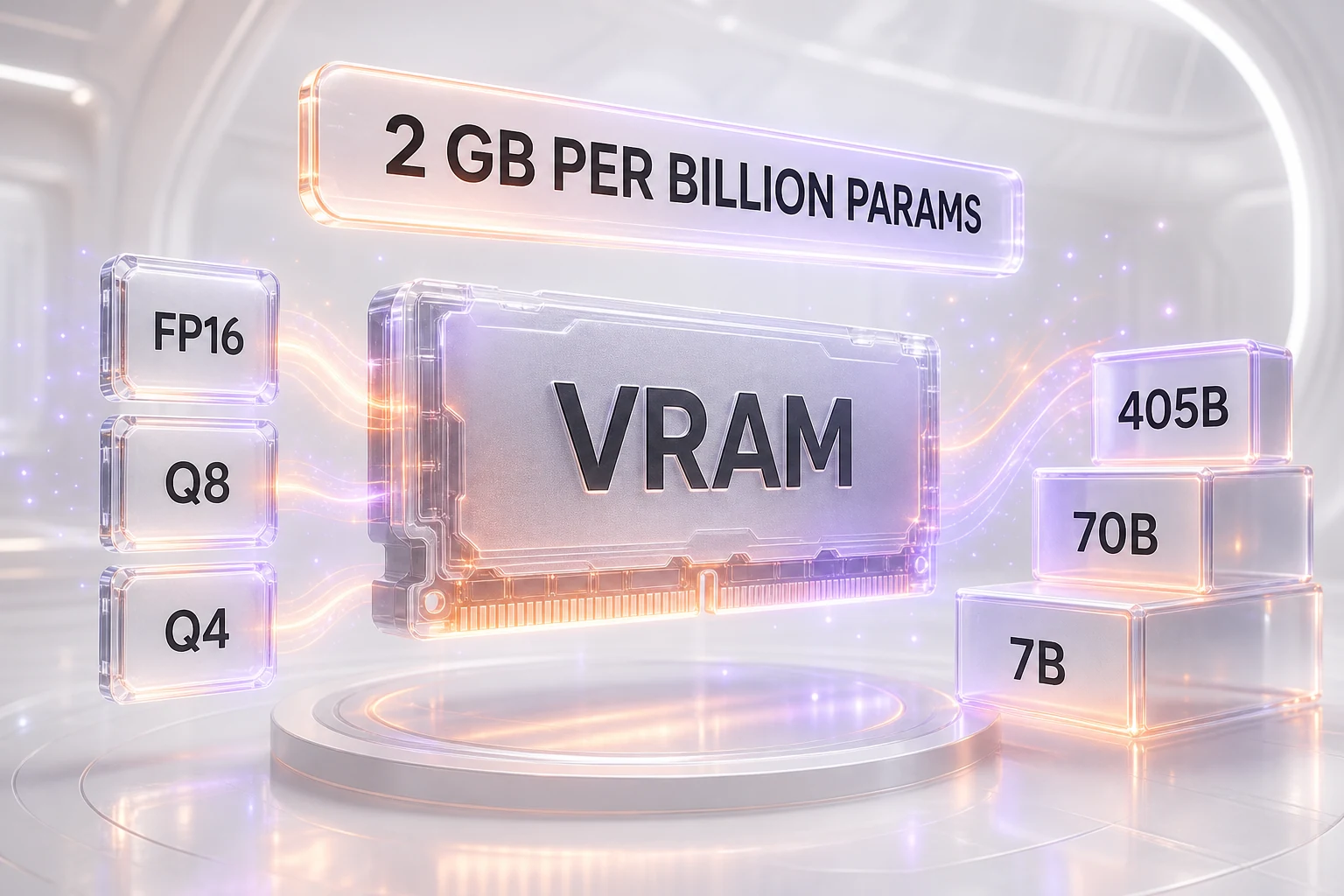
To run a large language model locally, budget roughly 2 GB of GPU VRAM per billion parameters in 16-bit (FP16) precision, about 1 GB per billion in 8-bit, and about 0.5 to 0.6 GB per billion in 4-bit — then add 15 to 20 percent on top for the runtime and a short context window. A 7-billion-parameter model needs about 14 GB in FP16 or roughly 4 GB in 4-bit; a 70B model needs about 140 GB in FP16 or roughly 40 GB in 4-bit. Below is the full sizing table, from 7B to 405B-plus across FP16, 8-bit, and 4-bit, mapped to the exact hardware — a laptop, a single consumer GPU, an 80 GB data-center card, or a multi-GPU node — that actually runs each one.
Almost every guide to running an open-weight model buries the one number you came for — the VRAM — three thousand words into the prose. This is the reference you can scan in ten seconds. We define the rule of thumb, lay out the full table, then explain the two things that quietly break it: the KV cache and quantization. If you want the step-by-step of actually getting a model running, our companion guide on how to self-host an open-weight AI model picks up where this leaves off.
The rule of thumb
Model weights are just numbers, and the memory they take is simply the number of parameters multiplied by the bytes used to store each one. That gives a rule of thumb that is exact for the weights and accurate enough to plan hardware around:
- FP16 (16-bit) — about 2 GB per billion parameters. Two bytes per parameter, so a 1B model is 2 GB, a 10B model is 20 GB. This is the default "full precision" for inference.
- 8-bit (Q8) — about 1 GB per billion parameters. One byte per parameter. Quality is essentially identical to FP16.
- 4-bit (Q4) — about 0.5 to 0.6 GB per billion parameters. Half a byte per parameter plus a little overhead for the quantization format. This is the most popular option for running big models on small hardware.
On top of the weights, add 15 to 20 percent for the CUDA context, activations, and a short context window. That headroom is a minimum, not a maximum: long contexts and many concurrent users push the real requirement higher through the KV cache, which we cover below. The rule works in reverse too — take the parameter count in billions, multiply by 2, 1, or roughly 0.55 for FP16, 8-bit, or 4-bit, and you have your weight memory in gigabytes.
The full VRAM sizing table
This is the matrix. Find your model size on the left, read across for the VRAM at each precision, and the last column tells you what hardware runs it in the popular 4-bit format. The 4-bit figures use 0.55 GB per billion parameters and are rounded; treat them as approximate.
| Model size | FP16 VRAM | 8-bit VRAM | 4-bit VRAM | What runs it at 4-bit |
|---|---|---|---|---|
| 7B | ~14 GB | ~7 GB | ~4 GB | 8 GB laptop GPU; any 12 to 16 GB card |
| 13B | ~26 GB | ~13 GB | ~7 GB | 8 to 12 GB laptop or consumer GPU |
| 27B | ~54 GB | ~27 GB | ~15 GB | One 24 GB consumer GPU (RTX 4090 / 5090) |
| 70B | ~140 GB | ~70 GB | ~40 GB | One 48 GB workstation GPU, or a 64 GB+ Mac |
| 120B | ~240 GB | ~120 GB | ~65 GB | One 80 GB data-center GPU (A100 / H100), tight |
| 235B | ~470 GB | ~235 GB | ~130 GB | Two 80 GB GPUs |
| 405B | ~810 GB | ~405 GB | ~225 GB | Three to four 80 GB GPUs |
| 1T+ MoE (DeepSeek V4 ~1.6T, Kimi K2.7 Code ~1T) | multi-node | ~1 TB+ | ~550 GB+ | A full multi-GPU node (8×80 GB) or more |
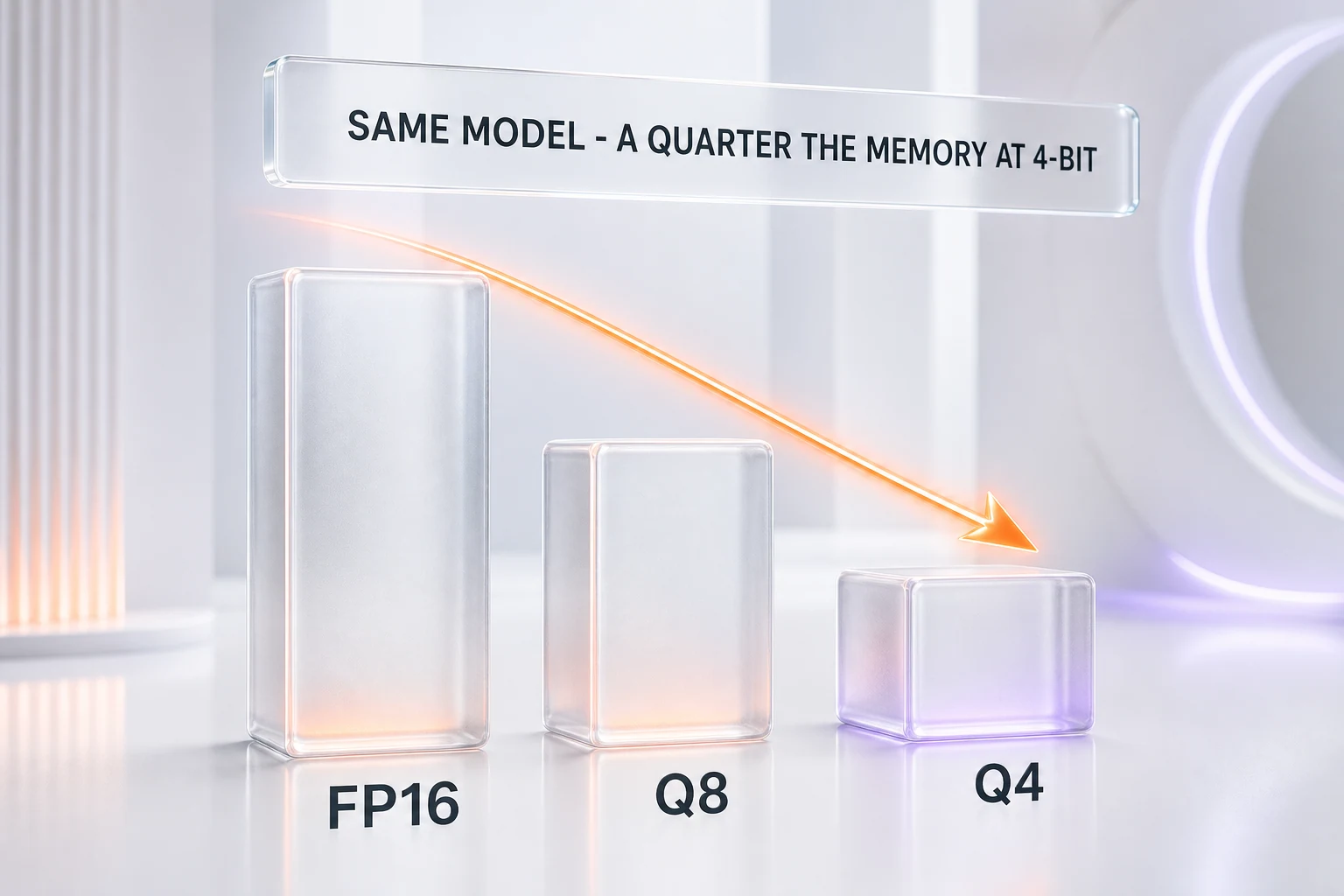
Two things fall straight out of the table. First, 4-bit is the great equalizer: it cuts the footprint to roughly a quarter of FP16, which is what turns a 70B model from a two-GPU job into something a single workstation card or a well-specced Mac can hold. Second, the jump from single-GPU to multi-GPU happens around 70 to 120B. Below that, one card can do it; above it, you are wiring GPUs together — and at the trillion-parameter mixture-of-experts frontier, you need a whole node.
The hardware ladder
It helps to think in tiers of hardware rather than individual cards, because that is how the decision actually gets made:
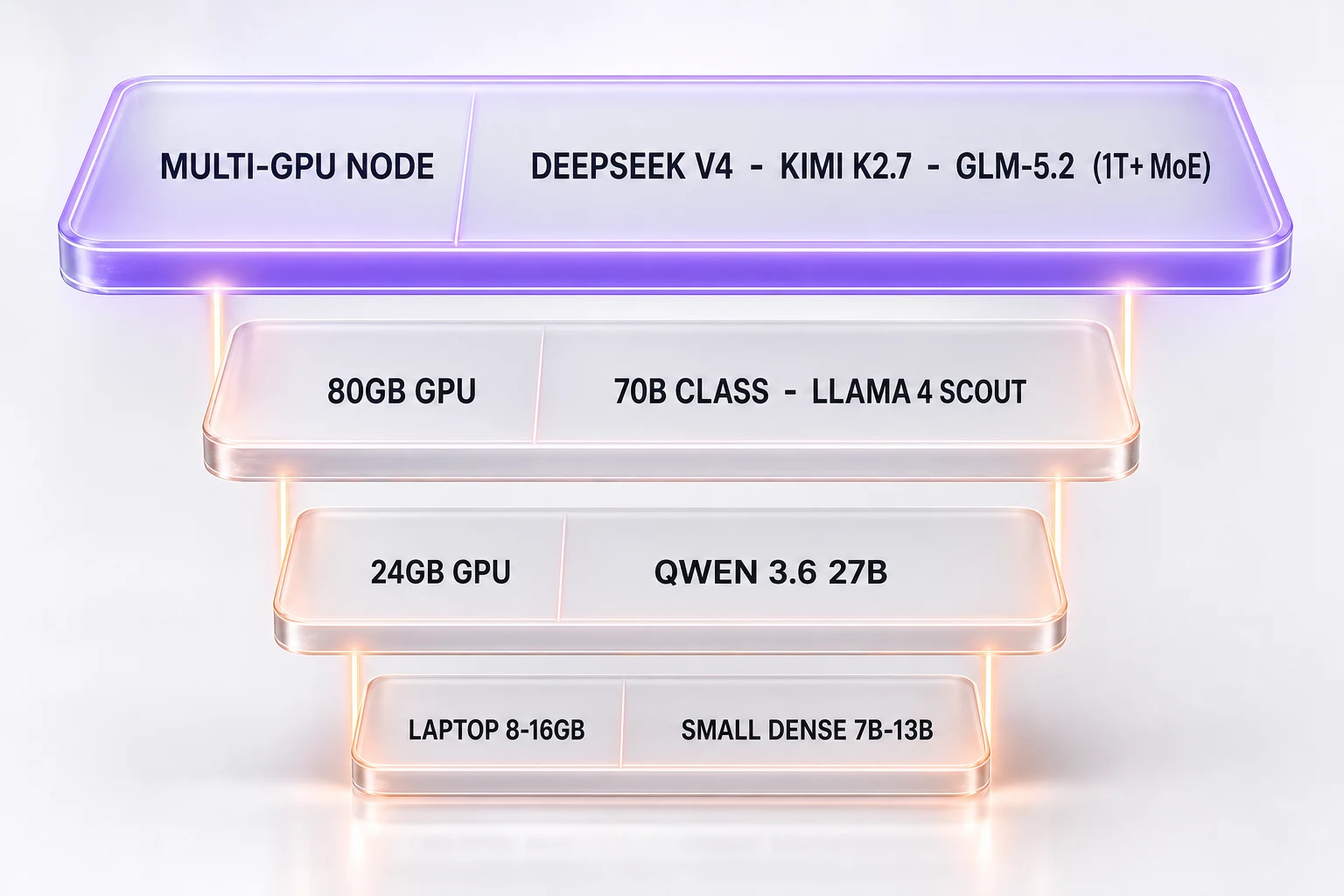
- Laptop / 8 to 16 GB: A laptop RTX GPU or a 16 GB Mac. Comfortable up to a 4-bit 13B; great for 7B and 8B models.
- Consumer 24 GB: An RTX 4090 or 5090, or a 3090. Runs a 4-bit 27B to about 32B model, or a smaller model in 8-bit with long context.
- Workstation 48 GB: An RTX 6000-class card, or two 24 GB GPUs. Holds a 4-bit 70B model.
- Data-center 80 GB: One A100 or H100. Runs a 4-bit 70B comfortably or a 4-bit 120B tightly; the workhorse of self-hosting.
- Multi-GPU node: Two, four, or eight 80 GB cards. The only way to run 235B, 405B, and the trillion-parameter MoE flagships.
The number everyone forgets: the KV cache
The sizing table above is for weights plus a short context. The moment you run long prompts or serve multiple users at once, a second memory cost appears — the KV cache — and it is the single most common reason a model that "should fit" runs out of memory.
Here is what it is. To generate each new token, a transformer attends to every previous token. Rather than recompute the attention keys and values for the whole history every step, the model caches them. That cache is the KV cache, and it grows with two things: the length of the context and the number of requests you run in parallel. Double the context and you double the cache; serve ten users instead of one and you multiply it by ten. At very long contexts and high concurrency, the KV cache can grow to rival or even exceed the size of the weights.

The practical consequences are simple. Never plan to fill your VRAM to the brim with weights — leave headroom, and more of it the longer your contexts and the more users you serve. If you are running a 4-bit 70B model at about 40 GB on a 48 GB card, a long context and a couple of concurrent requests can eat the remaining 8 GB fast. The good news is that modern models fight back: grouped-query attention (GQA) and multi-head latent attention (MLA, used by DeepSeek) shrink the KV cache by large factors compared with the older multi-head designs, which is one reason recent open-weight models are so much easier to serve at long context than their predecessors. When you plan, budget an extra allowance on top of the weight memory for the cache — modest for short single-user chats, substantial for long-context or multi-user serving.
Quantization in brief: what you actually lose
Quantization is the lever that makes all of this affordable, and the fear that it wrecks quality is mostly outdated. Quantization stores each weight in fewer bits — 8, 4, or fewer instead of 16 — which shrinks memory proportionally. The only question that matters is how much accuracy you give up.
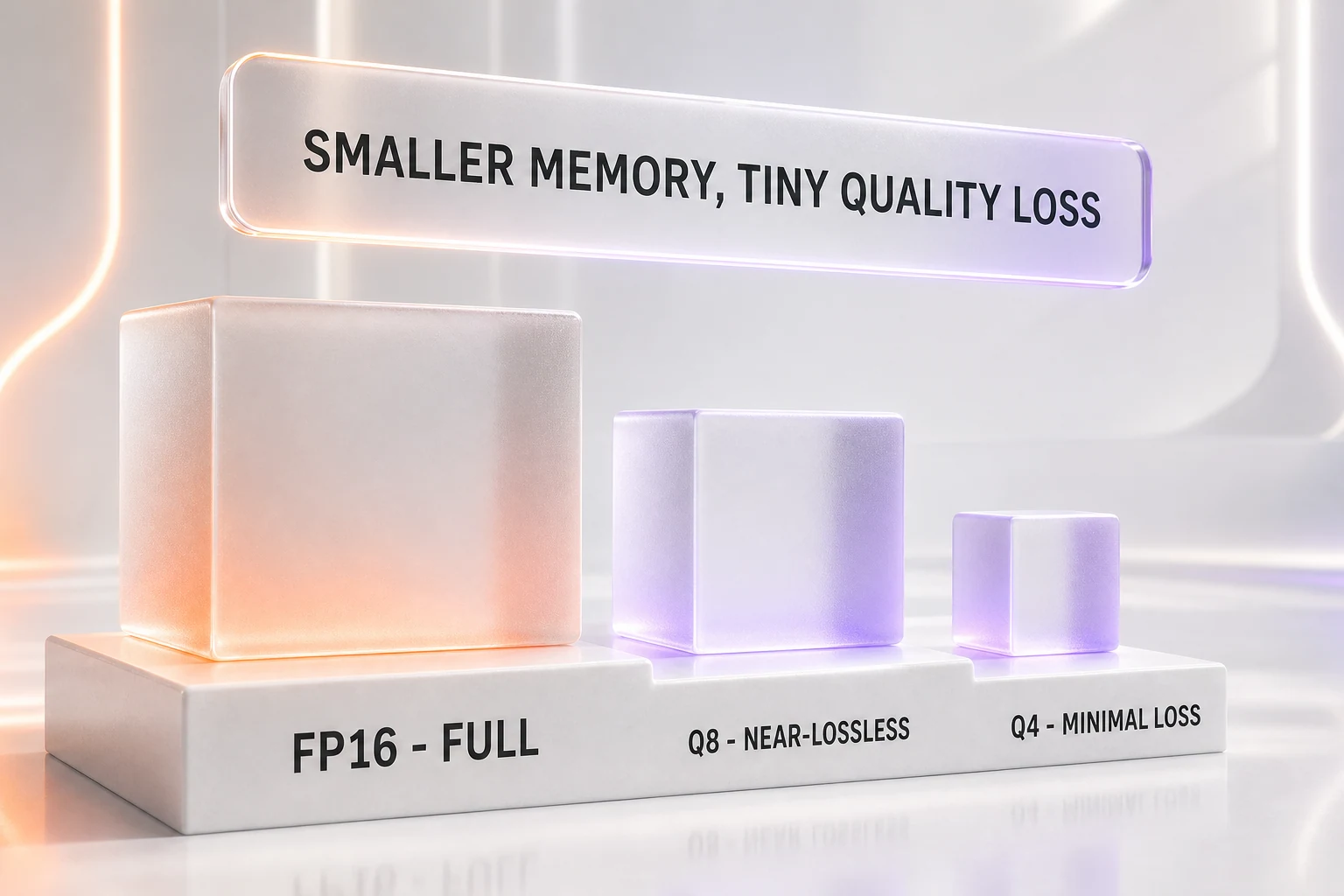
- 8-bit: Essentially lossless. If you have the memory for it, it is a free win over lower precision, with quality indistinguishable from FP16 on virtually all tasks.
- 4-bit: The popular default. Modern methods typically cost only about 1 to 2 percent on benchmarks versus full precision — often within the noise of a single evaluation run. For most real work you will not notice the difference.
- Below 4-bit (3-bit, 2-bit): Here quality degrades visibly and unevenly. Useful in a pinch to squeeze a model onto hardware it otherwise would not fit, but no longer a free lunch.
The headline takeaway is worth stating plainly: a 4-bit version of a bigger model almost always beats an FP16 version of a smaller one at the same memory budget. Given a fixed 24 GB card, a 4-bit 27B model will usually outperform an FP16 8B model. When in doubt, quantize down and size up.
A worked example: sizing a 70B deployment
The method is easier to trust when you see it applied end to end. Say you want to self-host a 70-billion-parameter model for a small internal team.
- Weights. At 4-bit, 70 times 0.55 is about 40 GB.
- Overhead. Add 15 to 20 percent for the runtime and a short context — call it 6 to 8 GB, taking you to roughly 47 GB.
- KV cache. Whatever is left is your budget for context and concurrency.
Now match it to hardware. On a 48 GB workstation card, 47 GB of weights and overhead leaves almost nothing for the KV cache — the model technically loads, but a long prompt or a second concurrent user will push it out of memory. On a single 80 GB data-center GPU, the same model leaves roughly 33 GB for the KV cache and activations, which is comfortable for long single-user contexts and enough to serve a handful of concurrent users. That gap is the whole lesson of this article: the weights told you 40 GB, but the deployment needed 80 GB. If you had sized on the weights alone, you would have bought the wrong card. A 64 GB or larger Mac is the third option here — it holds the model easily, just at lower throughput.
Real models by tier
Sizing is abstract until you attach real names to it. Here is how the open-weight models of 2026 land across the hardware ladder — and this is exactly where a lot of otherwise-good advice goes wrong, so read the placements carefully.
Laptop and single consumer GPU
The compact end of the market runs on hardware you may already own. Small dense models in the 7B to 14B range fit a laptop in 4-bit, and mid-size models fit a 24 GB consumer card. Alibaba's Qwen 3.6 ships open-weight variants — a 27B dense model and a 35B-A3B mixture-of-experts — that are squarely in single-GPU territory in 4-bit. This tier is where local, private inference is genuinely practical for individuals and small teams: no data leaves the machine, and there is nothing to rent.
Single data-center GPU (48 to 80 GB)
Step up to one workstation or data-center card and 70B-class models come into range in 4-bit, along with 120B-class models if you are willing to run tight. This is the workhorse tier for serious self-hosting: a single 80 GB A100 or H100 will serve a quantized 70B model to a small user base with room for a reasonable KV cache. Meta's Llama 4 Scout, a 109B mixture-of-experts with 17B active parameters, is designed to fit on a single high-memory card in a quantized format — note that despite the low active count, the full 109B still has to be resident, so this is a big-card job, not a laptop one.
Multi-GPU node — the trillion-parameter frontier
At the top sit the heaviest open-weight flagships, and they are multi-GPU only. This is the placement people get wrong, because the marketing emphasizes how few parameters are active. It does not matter: in a mixture-of-experts model, every expert must sit in VRAM even though only a few fire per token, so memory is driven by total parameters, not active ones. DeepSeek's DeepSeek V4, at about 1.6 trillion total parameters (49B active), and Moonshot's Kimi K2.7 Code, at about 1 trillion total (32B active), each need a full node of eight 80 GB GPUs or more, even quantized. Zhipu's GLM-5.2 at 753B and Mistral Large 3 at 675B sit just below, still firmly in multi-GPU territory, as does the 685B-parameter DeepSeek R2. None of these will ever load on a laptop or a single consumer GPU. If you want to use them without a GPU cluster, the answer is to rent them per token from an inference provider — the economics of which we break down in our guide to AI model pricing.
The Mac exception: unified memory
One platform bends the rules: Apple Silicon. On a Mac, the GPU shares a single pool of unified memory with the CPU, so most of the machine's RAM can act as VRAM. A MacBook Pro or Mac Studio with 128 GB of unified memory can hold a 4-bit 70B model — about 40 GB — with plenty of headroom, and a 192 GB Mac Studio can run roughly 120B-class models in 4-bit. That makes a high-memory Mac one of the cheapest ways to run a large model at home, since equivalent GPU VRAM costs far more.
The trade-off is bandwidth. A Mac's memory bandwidth is a fraction of a data-center GPU's, so it will happily hold a big model but generate tokens more slowly than an H100 would. For a single user doing local, private inference, that is often a perfectly good deal; for serving many users at speed, dedicated GPUs still win. Either way, if raw token cost is your concern rather than data control, compare the all-in numbers against renting first — our guide on how to cut your AI API costs walks through when local hardware actually pays for itself.
How to size your own deployment
Put it all together and sizing a deployment is a short checklist:
- Start with the weights. Parameters in billions times 2, 1, or 0.55 for FP16, 8-bit, or 4-bit. For a mixture-of-experts model, use total parameters, not active.
- Add overhead. Tack on 15 to 20 percent for the runtime and a short context.
- Budget the KV cache. Add more headroom the longer your contexts and the more concurrent users you expect.
- Pick the precision that fits. Prefer a 4-bit larger model over an FP16 smaller one at the same memory budget; use 8-bit when you have room and want maximum fidelity.
- Match it to a tier. Laptop for small models, a 24 GB card for mid-size, an 80 GB card or a big Mac for 70B, and a multi-GPU node for the trillion-parameter frontier.
If the model you want is bigger than the hardware you have — and for the frontier open-weight models, it will be — renting is not a failure, it is the sensible default until your volume justifies the fixed cost of GPUs. For the hands-on walkthrough of downloading weights, choosing a serving stack, and getting your first token out, head to our companion guide on self-hosting an open-weight AI model. And if you are weighing local inference against a managed API in the first place, our breakdown of closed versus open-weight models and our roundup of the best AI coding tools in 2026 put the whole decision in context.
Frequently asked questions
How much VRAM do I need to run an LLM?
As a rule of thumb, budget about 2 GB of GPU VRAM per billion parameters in 16-bit (FP16) precision, about 1 GB per billion in 8-bit, and about 0.5 to 0.6 GB per billion in 4-bit, then add 15 to 20 percent on top for the runtime and a short context window. So a 7-billion-parameter model needs roughly 14 GB in FP16 or about 4 GB in 4-bit, while a 70B model needs roughly 140 GB in FP16 or about 40 GB in 4-bit. The exact number also depends on how long a context you run, because the KV cache adds memory on top of the weights.
How much VRAM does a 7B or 8B model need?
A 7B or 8B model needs about 14 to 16 GB of VRAM in full FP16 precision, about 7 to 8 GB in 8-bit, and roughly 4 to 5 GB in 4-bit. That makes small models the sweet spot for consumer hardware: a 4-bit 7B model fits comfortably on an 8 GB laptop GPU, and an 8-bit version fits on a 16 GB card with room for context.
How much VRAM does a 70B model need?
A 70B model needs about 140 GB in FP16, which is two 80 GB data-center GPUs. In 8-bit it needs about 70 GB, which just fits on a single 80 GB card. In 4-bit it drops to roughly 40 GB, which fits on one 48 GB workstation GPU or a Mac with 64 GB or more of unified memory. Add headroom for the KV cache if you run long contexts.
What is the KV cache and how much VRAM does it use?
The KV cache stores the attention keys and values for every token already in the context so the model does not recompute them on each new token. It is a second memory cost that sits on top of the weights, and it grows linearly with context length and with the number of concurrent requests you serve. At long contexts and high concurrency it can rival the size of the weights themselves, which is why you should never fill your VRAM to the brim with weights alone. Modern attention designs such as grouped-query attention and multi-head latent attention shrink the KV cache dramatically compared with older models.
Does 4-bit quantization hurt quality?
Very little for most tasks. 8-bit quantization is essentially lossless, and modern 4-bit methods typically cost only about 1 to 2 percent on benchmarks versus full precision, which is often within the noise for everyday use. Quality only starts to degrade noticeably below 4-bit, at 3-bit and especially 2-bit. For running a bigger, more capable model on the hardware you already have, 4-bit is usually the best trade you can make.
Can I run a large LLM on a laptop?
You can run small and medium models on a laptop, not the giant ones. With an 8 to 16 GB laptop GPU you can comfortably run 4-bit models up to about 13B, and a 27B model in 4-bit fits on a 24 GB card. Trillion-parameter mixture-of-experts flagships like DeepSeek V4 and Kimi K2.7 Code are multi-GPU only and cannot run on a laptop or a single consumer GPU. For anything larger than your hardware, renting the model from an inference provider is usually the practical answer.
Can a Mac run large LLMs?
Yes, and Apple Silicon is unusually good at it because its unified memory lets the GPU use most of the system RAM as VRAM. A Mac with 128 GB of unified memory can run a 70B model in 4-bit with room to spare, and a 192 GB Mac Studio can handle roughly 120B-class models in 4-bit. The catch is memory bandwidth: a Mac has far less than a data-center GPU, so it holds big models but generates tokens more slowly.
Do MoE models like DeepSeek V4 and Kimi K2.7 Code need less VRAM because only some parameters are active?
No. In a mixture-of-experts model only a fraction of the parameters are active per token, which lowers the compute cost, but every expert must still sit in VRAM because any of them can be selected at any step. So memory is driven by the total parameter count, not the active count. DeepSeek V4 has about 1.6 trillion total parameters with 49B active, and Kimi K2.7 Code has about 1 trillion total with 32B active, so both need enough VRAM for the full trillion-scale weights even though they compute like a much smaller model.
How much VRAM to run DeepSeek V4 or Kimi K2.7 Code locally?
These are the heaviest open-weight models in 2026 and they are multi-GPU only. Kimi K2.7 Code at about 1 trillion total parameters needs a full node of eight 80 GB GPUs even in a quantized format, and DeepSeek V4 at about 1.6 trillion total parameters needs even more, typically a node of high-memory data-center cards or multiple nodes. Neither will run on a single GPU. Most teams that want these models rent them from an inference provider rather than hosting them in-house.
Is it cheaper to buy a GPU, rent one, or just use an API?
It depends on volume. Owning GPUs only pays off at high, steady utilization because the hardware and operations are a large fixed cost. For low or bursty workloads, renting the model per token from an inference provider or using a managed API is usually cheaper all-in, and it needs no VRAM planning at all. A useful rule is to prototype on a rented or hosted model, measure your real volume, and only buy hardware once the math clearly favors it.
How do I calculate VRAM for a specific model?
Take the parameter count in billions and multiply by 2 for FP16, by 1 for 8-bit, or by about 0.55 for 4-bit to get the weight memory in gigabytes, then add 15 to 20 percent for runtime overhead and a short context. For long contexts or many concurrent users, add a further allowance for the KV cache. For a mixture-of-experts model, use the total parameter count, not the active count, because all experts must be resident in memory.